
QR Code Menu: How to Make One in 6 Steps (2026)
How to make a QR code menu in 6 steps: what to put on it, where to place the code, the mistakes that send guests back to paper, and how to take orders.
In this article
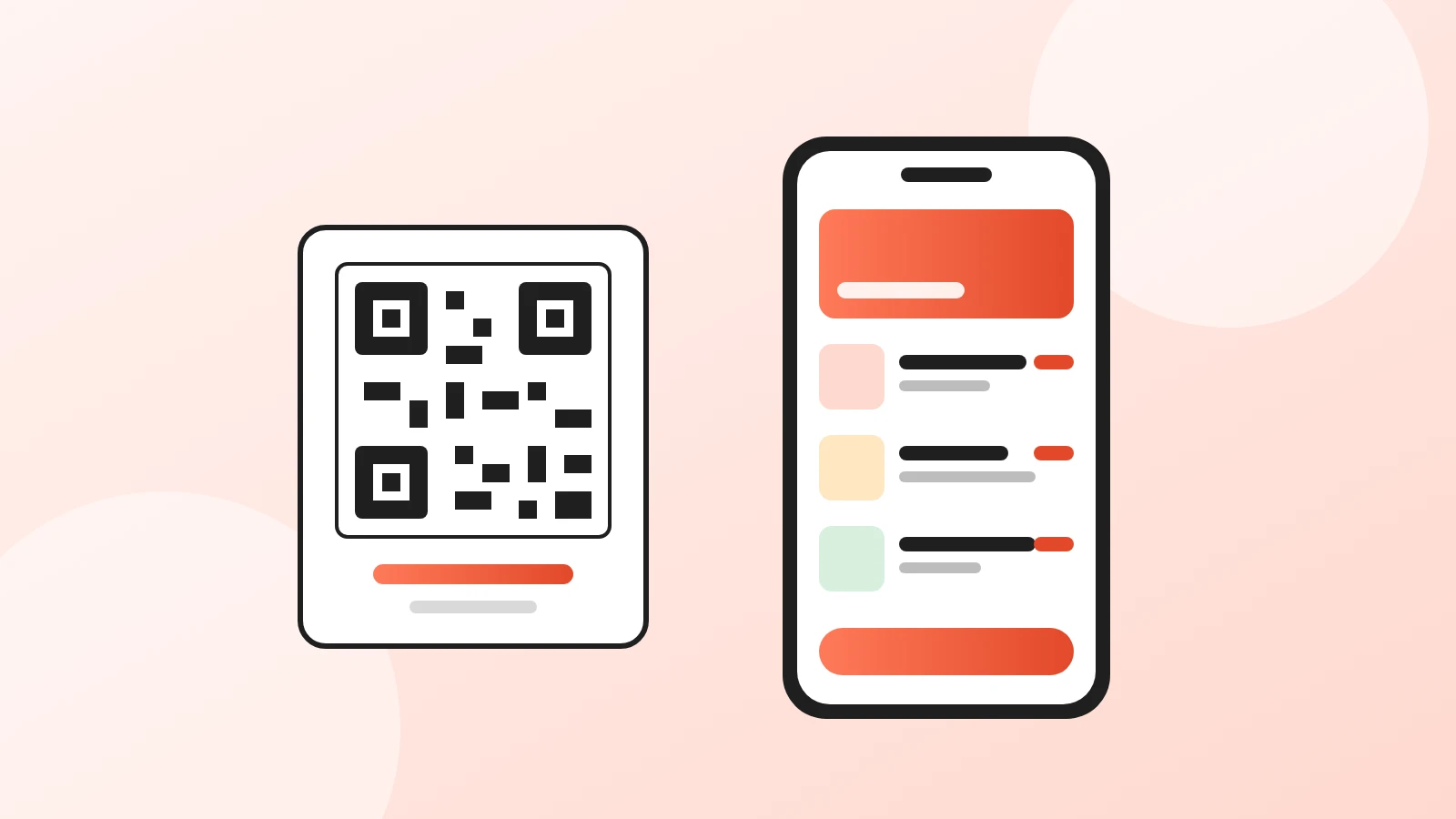
A QR code menu is a mobile web page with your menu on it, plus a printed code that opens that page. You can set one up in an afternoon: put the menu online, generate a code that points to it, print it, and place it where seated guests see it.
The part that decides whether guests actually use it is the page behind the code. If it's a blurry PDF, people ask for paper. If it loads fast, fits the phone and shows photos and prices clearly, most of them won't.
This guide covers the whole job, from what to put on the menu to taking orders from it. For the bigger picture, from costs to ordering, read our guide to the digital menu for restaurants.
What do you need to make a QR code menu?
If you want the short version first, here it is:
- A menu page that works on phones. Not a PDF. A page that fits the screen, with sections, dish names, prices and photos.
- A QR code that points to that page, not to a file. Then you can change the menu without reprinting anything.
- Somewhere to show the code: table tents, stickers, the window, the bill folder.
- Optional: ordering. If guests can order from the menu, the QR code also becomes a sales channel, not just a replacement for paper.
The free way to get all four is a digital menu tool. Acuolina gives you the menu page, the QR code and ordering in one place. The rest of this guide works with any tool.
Why not just upload a PDF of your menu?
Because a PDF was designed for paper. On a phone, guests pinch, zoom and scroll sideways to read a single line, and the file is often several megabytes on a weak restaurant Wi-Fi signal.
| PDF menu | Mobile web menu | |
|---|---|---|
| Readable on a phone | Needs zooming | Fits the screen |
| Load time on 4G | Slow for large files | Fast, text loads first |
| Changing a price | Edit, export, re-upload | Edit and save |
| Photos per dish | Only if they fit the layout | Yes, per dish |
| Ordering | No | Yes, with the right tool |
| Found on Google | Rarely | Yes, it's a web page |
A web menu is also a page search engines can read, so it can show up when someone searches for your restaurant's name and "menu".
How to make a QR code menu, step by step
1. Write the menu for a small screen
Start from your printed menu, then cut. On a phone, guests scan rather than read:
- Group dishes into sections in the order people eat: starters, mains, sides, desserts, drinks.
- Keep descriptions to one or two lines. Lead with what makes the dish yours.
- Write prices as numbers, without "€" repeated in every line if your tool adds the currency.
- Mark what guests ask about most: vegetarian, spicy, house specials.
- List each dish's allergens. In Acuolina you tick them on the dish, and guests see them under its name.
2. Add photos to the dishes that sell
You don't need a photo for every item. Start with your best sellers and the dishes with the highest margin. A clear photo taken in daylight on a phone beats a dark professional shot. Shoot from above or at 45 degrees, on a plain background.
3. Put the menu online
Create the menu in your tool, section by section. With Acuolina, you add sections and dishes from the dashboard, and the menu is live at its own address as soon as you save. Check it on your own phone before printing anything: open it on mobile data, not Wi-Fi, to see what a guest sees.
4. Generate the QR code
Most menu tools generate the code for you. If you make one yourself, use a code that points to your menu's web address and test it with two or three different phones.
Two rules keep the code reliable:
- Point it at a page, not a file, so the code never needs to change.
- Print it big enough. About 3 × 3 cm is the practical minimum for a table; bigger is better for windows and walls.
5. Print and place the code
Put the code where a seated guest sees it without moving anything:
- Table tents or stickers on each table, at the edge closest to the guest.
- The entrance or window, so people can read the menu before they come in.
- The bill folder or receipt, so guests can find you again and order next time.
Add one line of text next to the code, such as "Scan for the menu and to order". A code with no explanation gets fewer scans.
6. Train the team in two sentences
Your staff will get the questions. Give them two sentences: how to open the menu with the camera, and what to do if a guest prefers paper. Keep a few printed menus for those guests.
What are the most common QR menu mistakes?
These are the ones that send guests back to asking for paper:
- A PDF behind the code. Covered above, and still the most common one.
- A code that points to a temporary link from a free generator that expires or later asks you to pay to keep it working.
- No prices, or outdated prices. Guests trust the menu less than the waiter after one wrong price.
- Tiny codes in dark corners. Low light and glossy lamination make codes hard to scan.
- No way to order. If guests can read the menu but must wait to order, you've removed paper and nothing else.
Can guests order from a QR code menu?
Yes, and this is where a QR menu starts paying for itself. When the menu has a cart, guests order when they're ready instead of waiting for a free waiter, and the same menu works for takeaway and delivery orders from home. To see how it works in a busy dining room, read QR code table ordering.
With Acuolina, orders arrive on WhatsApp or by SMS, and there's no commission per order. If you currently rely on delivery apps for online orders, read commission-free ordering vs delivery apps to compare the two models.
You can see what's included in each plan on the pricing page, or browse more QR menu guides.
How much does a QR code menu cost?
The QR code itself costs nothing: generating one is free, and printing table cards costs a few euros or dollars. What you pay for, if anything, is the menu tool behind it. Many tools, Acuolina included, have a free plan for the menu, with paid plans for extra features. We compare what each free plan really includes in free QR code menu options.
Compare tools on three things rather than on the monthly price alone: whether you can edit the menu yourself, whether guests can order from it, and whether the tool takes a cut of those orders.
Your QR menu checklist
Before you print, check that:
- The menu opens in under a few seconds on mobile data.
- Every price is current.
- Your best sellers have photos.
- The code works on at least two different phones.
- There's a line of text next to every printed code.
- Staff know what to say when a guest asks.
Then create your menu and print the first table card today. More guides are on the Acuolina blog.
Frequently asked questions
Do guests need an app to open a QR code menu?
No. The camera app on current iPhones and Android phones reads QR codes and opens the menu in the browser. Guests don't install anything, which is why a web menu works better than a restaurant app.
Should I use a PDF of my printed menu?
Avoid it. A PDF is hard to read on a phone, has to be zoomed and scrolled sideways, and you must re-upload it every time a price changes. A mobile web menu fits the screen and updates the moment you edit it.
Can I change prices without reprinting the QR code?
Yes, as long as the code points to a menu page you control rather than to a file. The code stays the same; only the page behind it changes.
Where should the QR code go on the table?
Where a seated guest can see it without moving anything, at eye level and away from glare. Table tents, stickers on the table edge and the bill folder are the usual spots. Keep a few paper menus for guests who prefer them.
Can guests order and pay from a QR code menu?
They can if your menu tool supports ordering. With Acuolina, guests add dishes to a cart and the order reaches you on WhatsApp or by SMS, without a commission on the order.
Keep reading
QR menus
Digital Menu for Restaurants: The 2026 Guide
What a digital menu is, what it costs, how it differs from menu screens, and how to set one up with QR codes and commission-free ordering.
QR menus
Free QR Code Menu: 5 Options Compared (2026)
What free QR code menu plans really include in 2026, from order caps to missing features and commissions, compared side by side with their sources.
QR menus
QR Code Table Ordering: How It Works and Costs
How QR code ordering at the table works, from scan to kitchen, what it costs compared with waiters and kiosks, and how to roll it out without losing guests.
Your first direct order, tonight.
Create your menu in minutes and get every Chef feature free for 14 days. Then stay on Basic for free, or upgrade.