
Here's how to read your sales report: what your store earned, how guests ordered and which items sold best, on every plan.
Pick the period
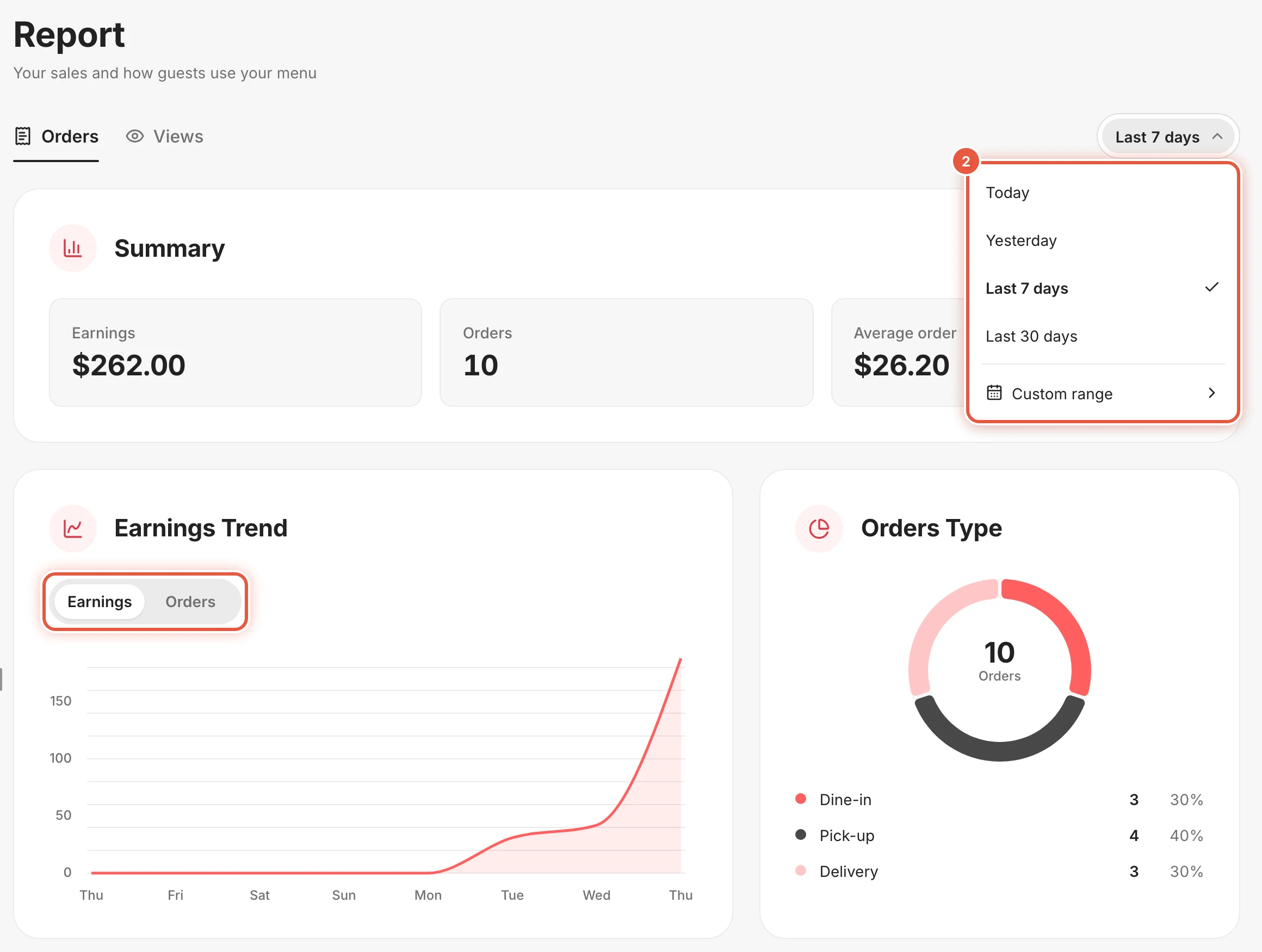
- In the sidebar, select Report. The Orders tab opens on Last 7 days.
- Select the period to switch to Today, Yesterday or Last 30 days, or choose Custom range and pick up to 31 days on the calendar.
Read your sales report
Earnings, Orders and Average order sum up the period. The green or red badge compares each one with the period just before, as long as the one you picked.
- Earnings Trend draws the period day by day; switch it between Earnings and Orders.
- Orders Type shows your orders by type: dine in, pick up and delivery, with the count and share of each.
See your best sellers
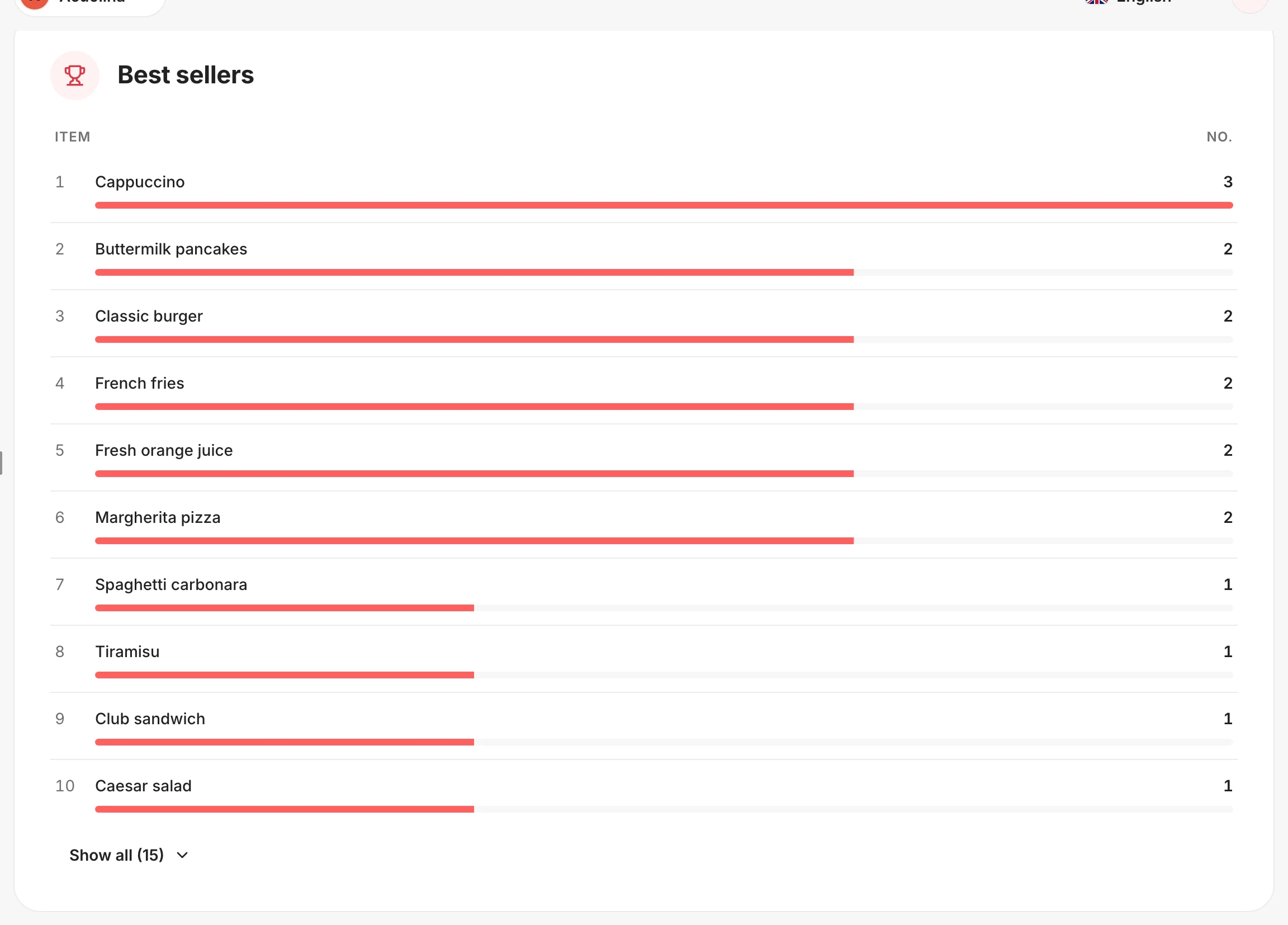
Best sellers ranks your items by how many sold. The first 10 show; Show all lists the rest.
To see which items guests look at before they order, read How to see which items guests look at. More on the sales reports page.