
Here's how to delete a store you no longer need. Deleting it removes the store for good: its menus, its link and its QR code stop working.
Before you delete a store
- You can't delete your only store: add another store first.
- Paying for Chef on this store? Cancel its plan under Account, Subscription first: deleting the store doesn't cancel it.
Delete a store

- Pick the store in the store switcher and open Store.
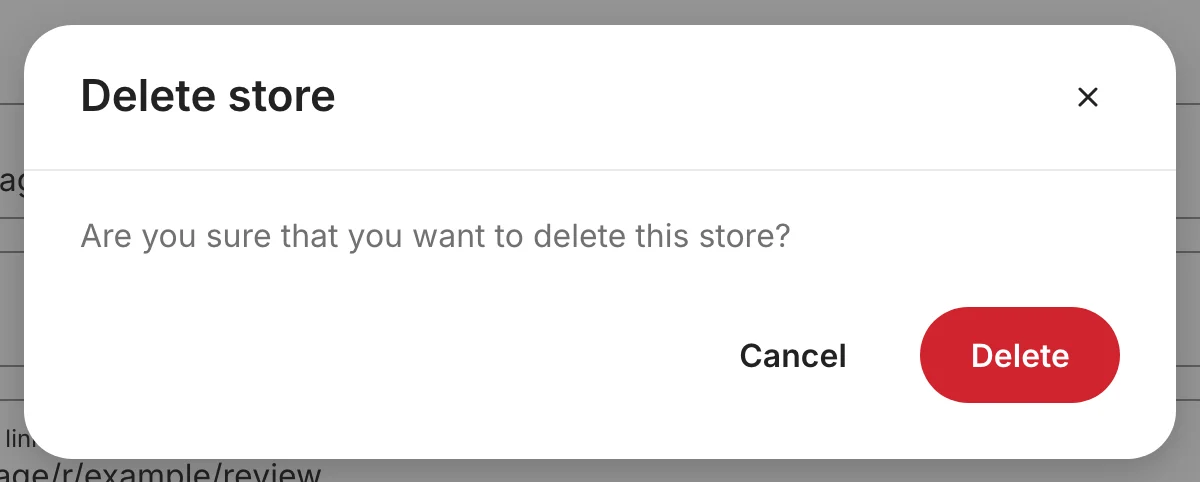
- At the bottom of Profile, select Delete store.
- Select Delete to confirm, or Cancel to keep it.
The dashboard moves to your other store. Only closing for a while? Keep the store and turn off online orders instead.