
Here's how to set your store opening hours and the details guests see on your menu: your logo, description, address, contacts and social links.
Add your store logo and address
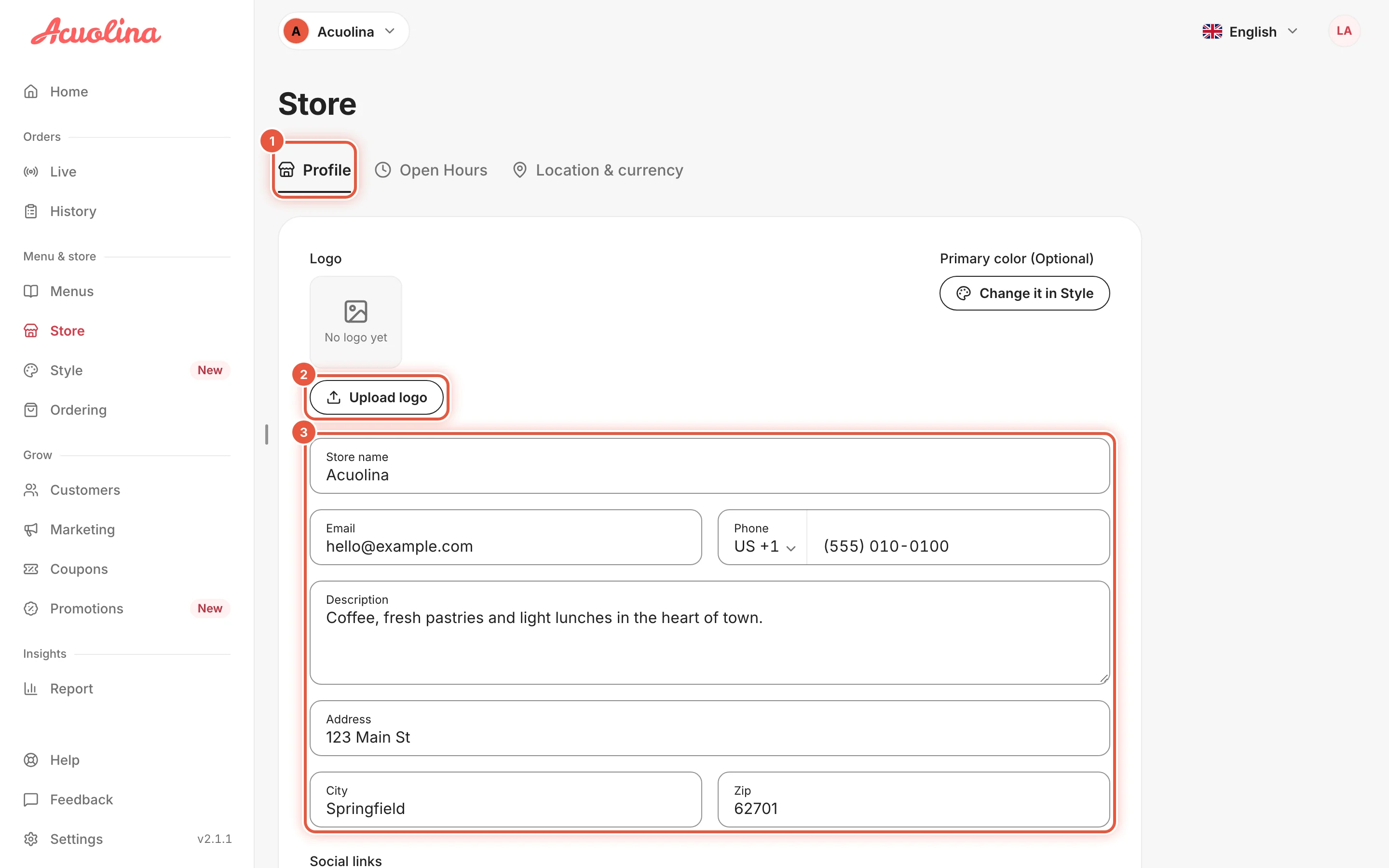
- In the sidebar, select Store. It opens on Profile.
- Select Upload logo. Your logo goes at the top of your menu.
- Fill in Store name, Email, Phone, Description, Address, City and Zip. Guests see the description under your logo and the address and phone at the bottom of the menu.
- Under Social links, paste your Instagram, Website and Facebook links. Add your Google review link and your menu shows a button to review you.
- Select Save.
Your brand colour lives on the Style page: see how to change your menu design.
Set your store opening hours
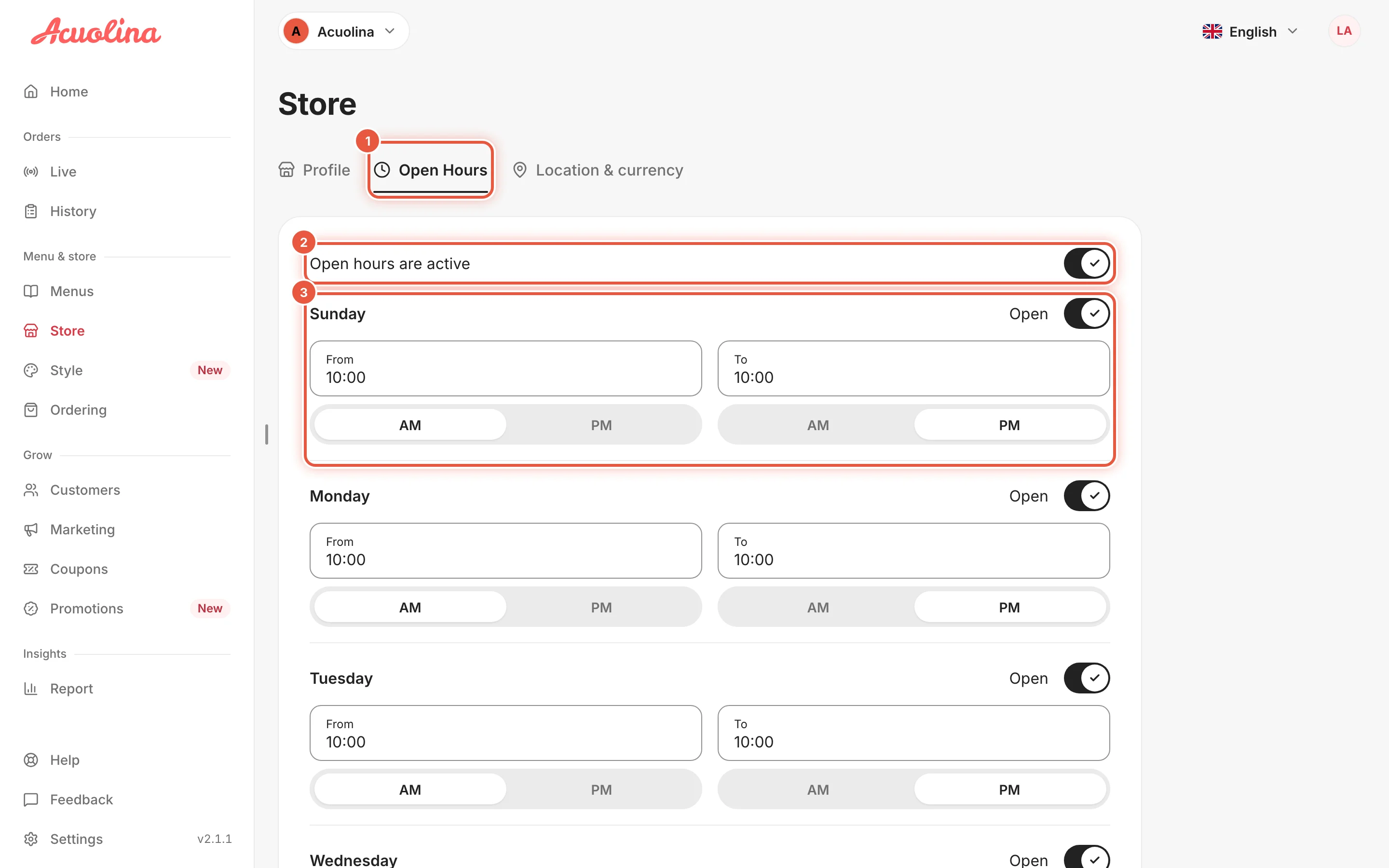
- Open the Open Hours tab.
- Turn on Open hours are active. While it's off, your store shows as Always Open.
- For each day, switch Open or Closed and type the From and To times.
- Select Save.
Your menu then shows whether you're open now, and guests can send online orders only during your opening hours.
Set your location and currency
- Open the Location & currency tab.
- Under Store location, select Get Position while you're at the store. Delivery distances are measured from this point.
- Choose your Currency and select Save.