
Here's how to change your store logo, its name, the store description and the phone and email on the menu.
Change your store logo
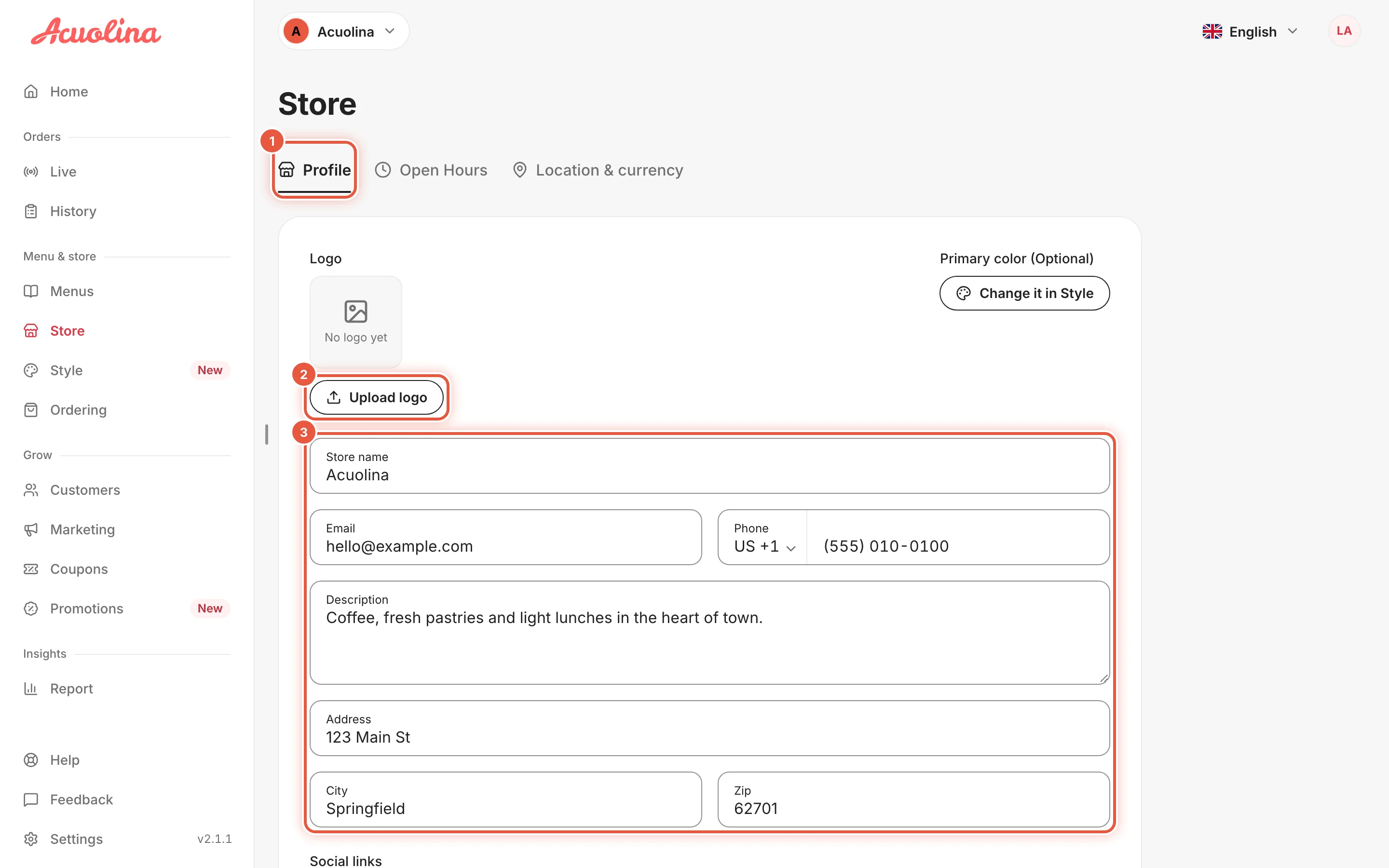
- In the sidebar, select Store. It opens on Profile.
- Select Upload logo and pick an image. It goes at the top of your menu and as its icon on guests' phones.
Change the name and contacts
- Edit Store name, Description, Email and Phone, plus the Address, City and Zip.
- Select Save.
Guests see the store description under your logo, and the phone and email on the menu at the bottom of your QR code menu. Your brand colour is on the Style page.