
Here's how to print a QR code table stand for your tables, ready on plain paper or card.
Print a QR code table stand
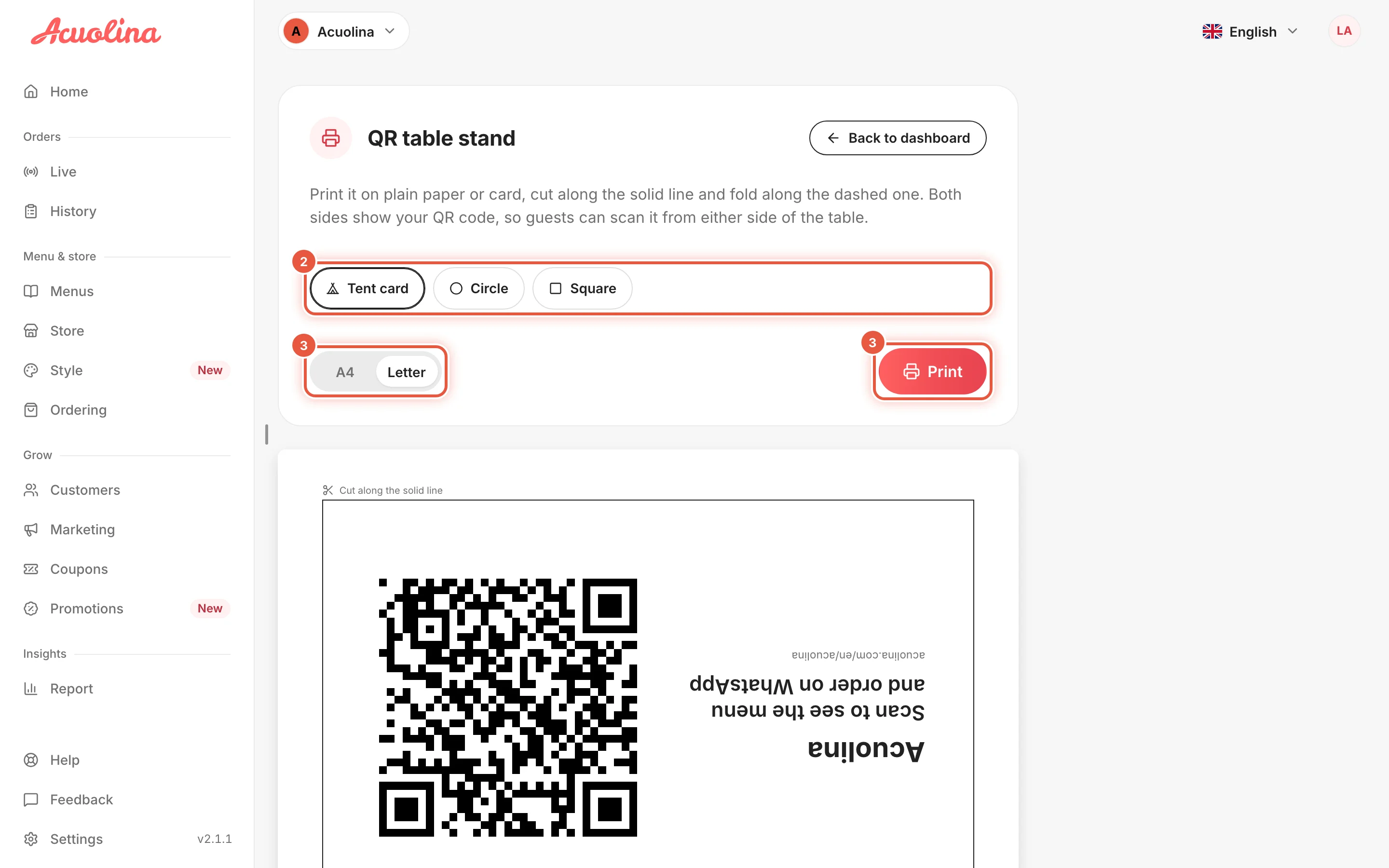
- On Home, select Print table stand under your QR code.
- Pick a style: Tent card, a table tent that shows the code on both sides, or Circle or Square QR badges.
- Choose A4 or Letter, then select Print.
Cut, fold and place it
- For the Tent card, cut along the solid line and fold along the dashed one.
- For Circle or Square, cut out the four codes and stick them on tables, the counter or the window.
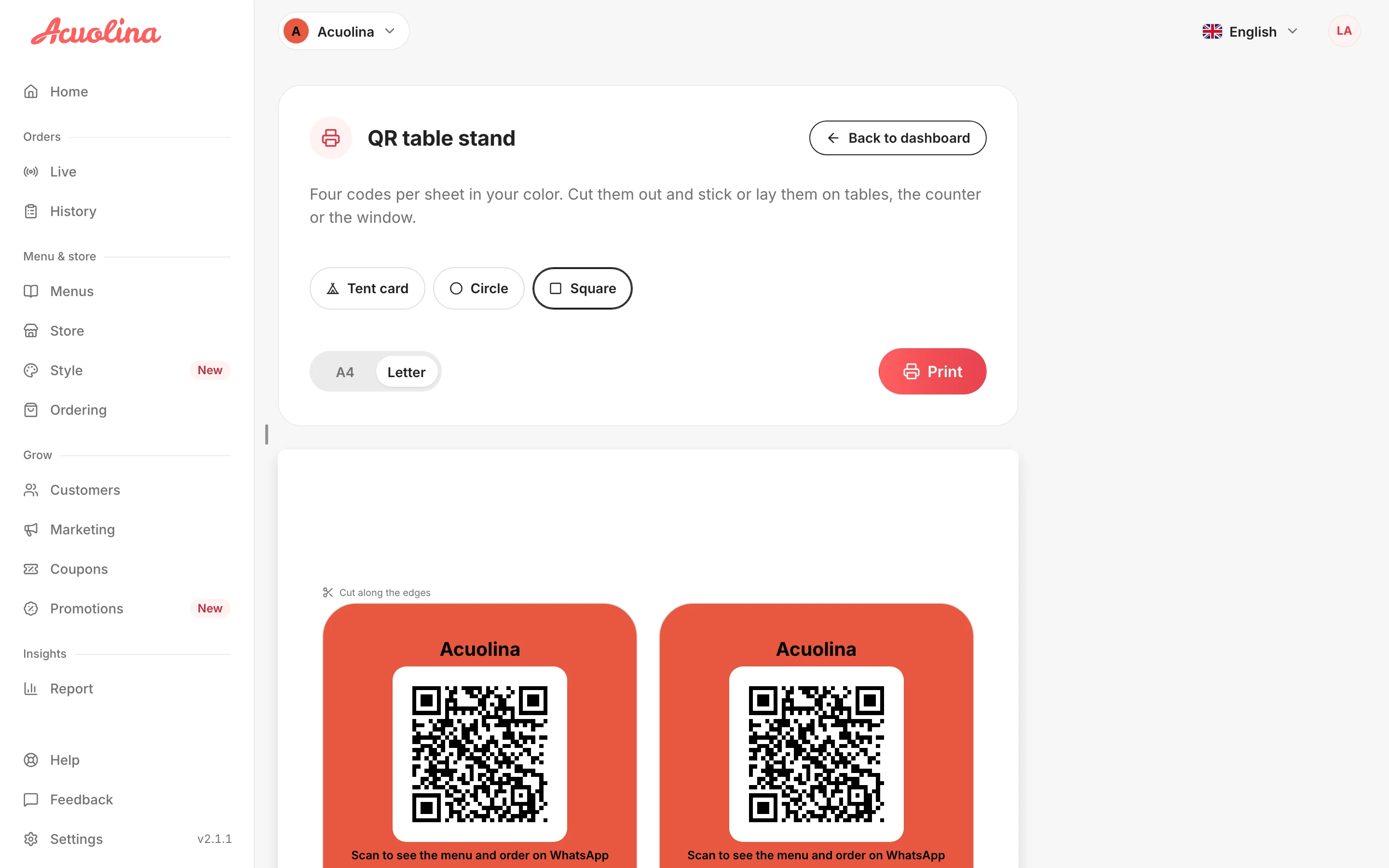
The code opens your menu, so guests can order from the table when table ordering is on. Need a code for something else? Try the free QR code menu generator.