
Here's how to share your menu with a QR code and a link: download the code, print a stand for your tables and post the link wherever guests look for you.
Share your menu with a QR code
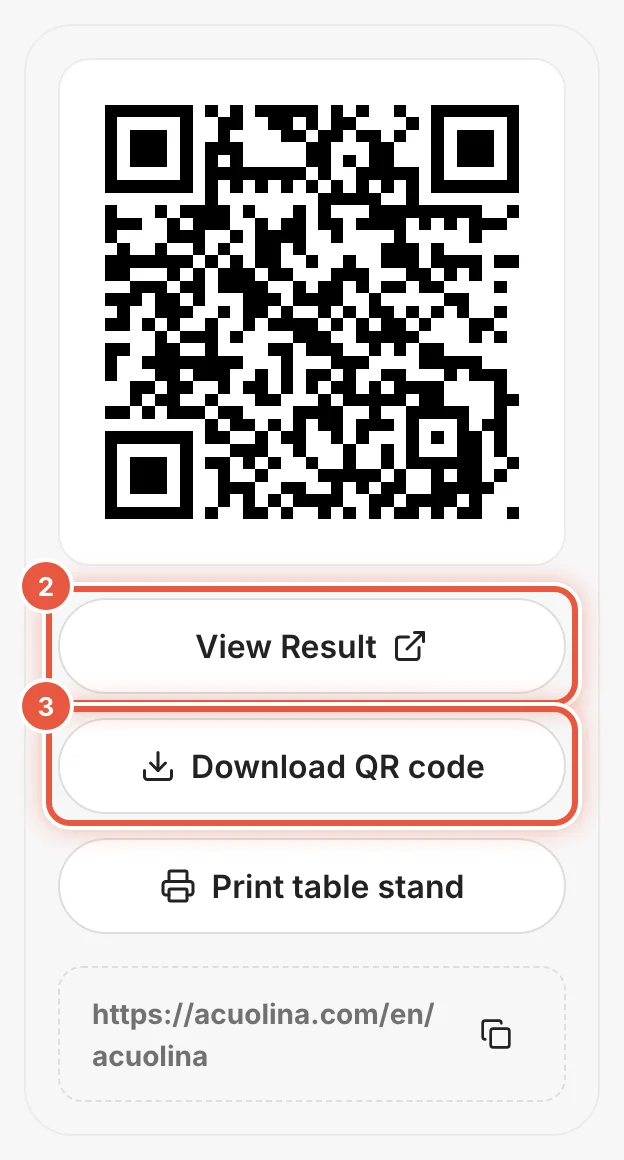
- Open Home in the dashboard. Your menu's QR code is on the right.
- Select View Result to see what guests see when they scan it.
- Select Download QR code to save it as an image for flyers, posters and your window.
The code and the link never change: edit your items and prices as often as you like, with nothing to print again.
Print a QR code table stand
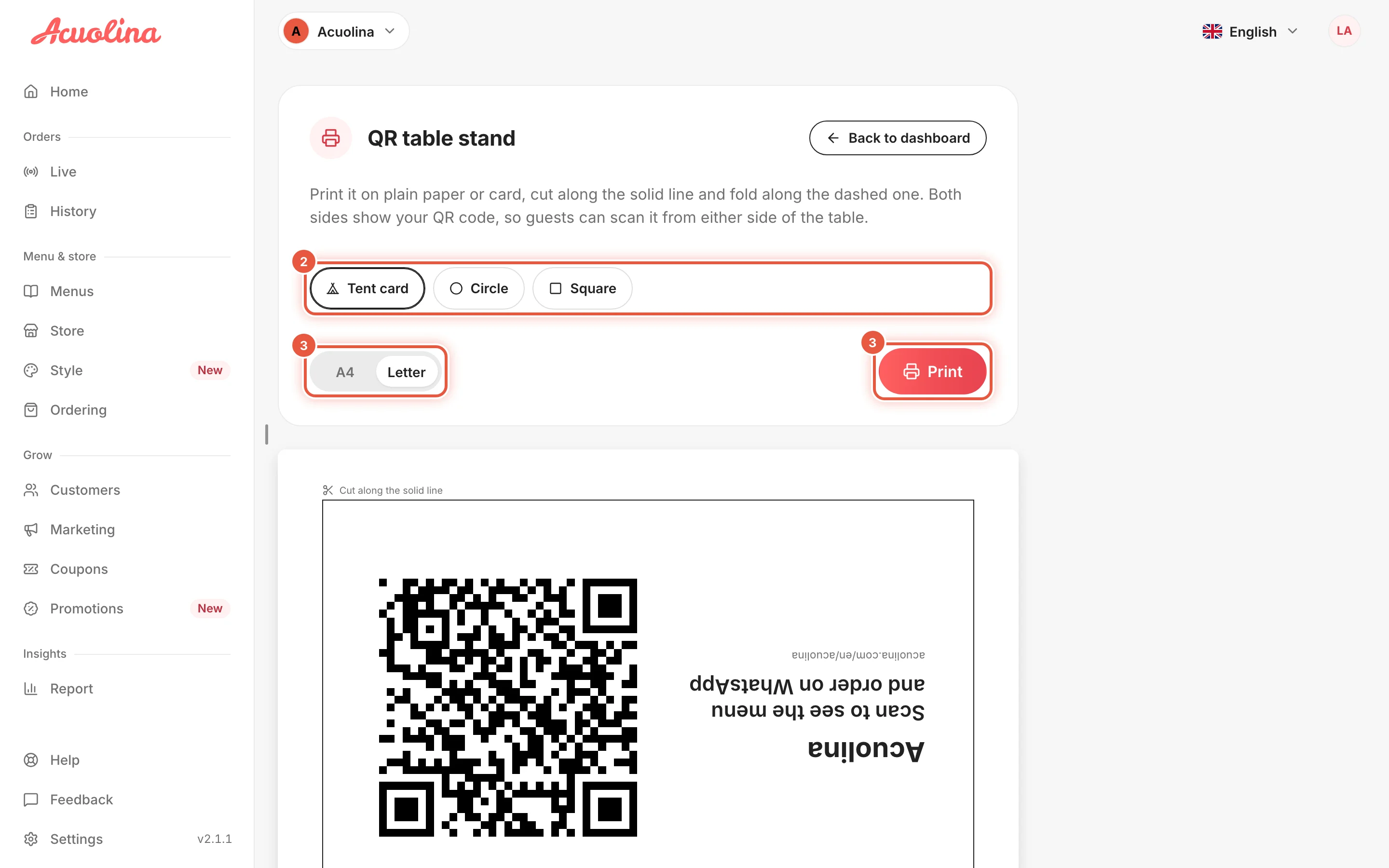
- On Home, select Print table stand.
- Pick Tent card for a stand that folds and shows the code on both sides, or Circle or Square for four codes per sheet to stick on tables, the counter or the window.
- Choose A4 or Letter, then select Print.
Post your menu link on Instagram and Google
- On Home, select the Copy link button next to your menu's link.
- Paste it in your Instagram bio, as the menu link of your Google Business Profile and in your WhatsApp status.
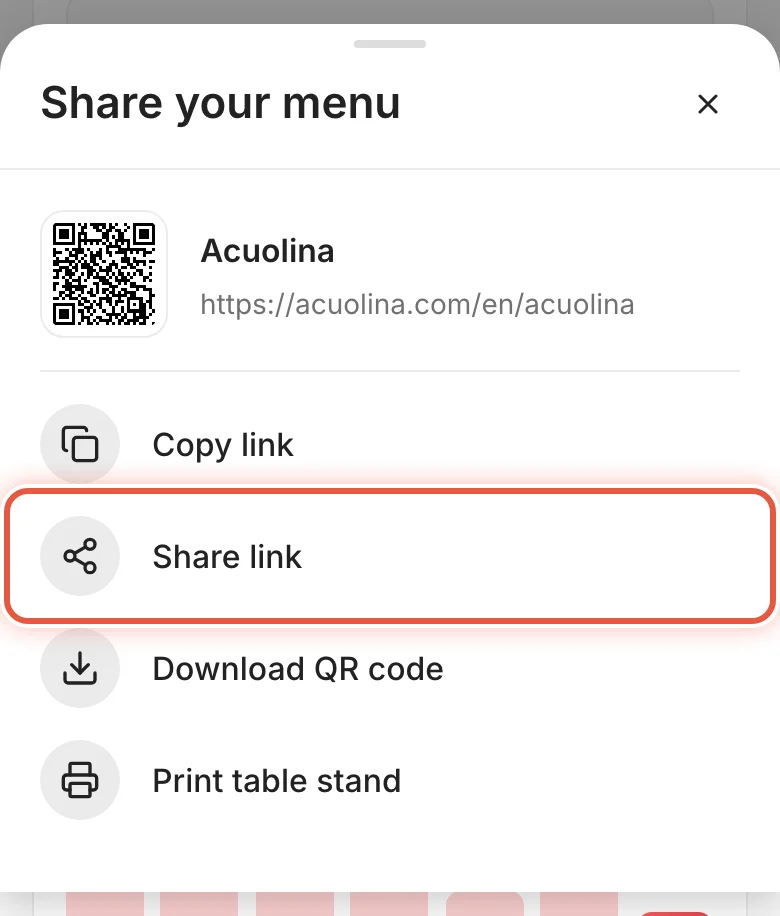
On a phone, tap Share in the bar at the bottom of the dashboard. Copy link, Share link (your phone's own share menu), Download QR code and Print table stand are all there.
Need a QR code for another link, like your reviews or Wi-Fi page? The free QR code menu generator makes one in seconds.