
Sample menus with photos, quick items, three ways to add your menu
Three ways to add your menu
Setting up a new store no longer depends on having your menu at hand. The setup wizard's menu step now offers three choices: Upload my menu (marked Recommended), Type a few items and Start from a sample. Pick whatever is easiest right now. You can change everything later.
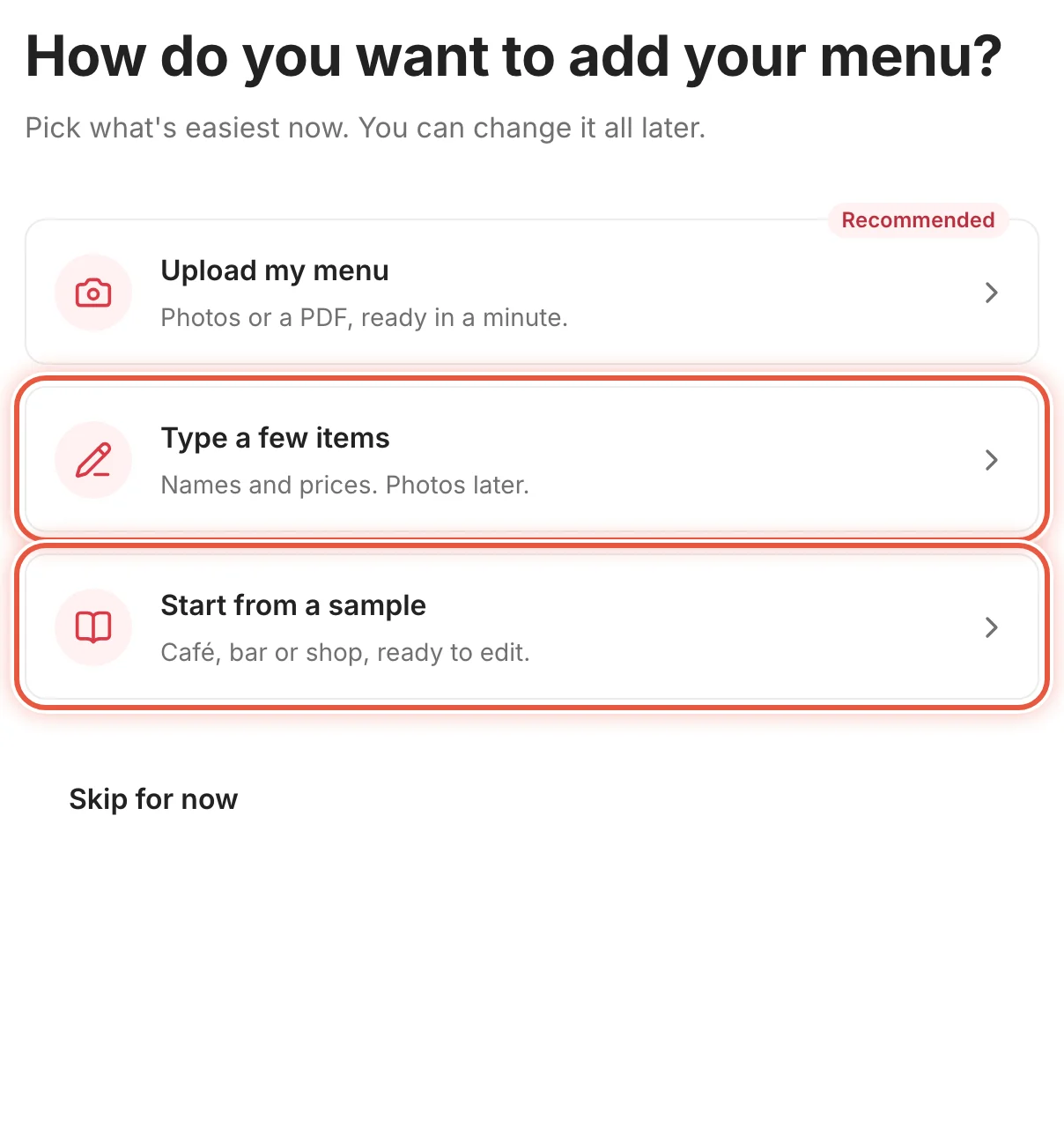
If you do have your menu, nothing changes: upload photos or a PDF, and the AI reads it and builds your menu for you to check before saving.
Type a few items
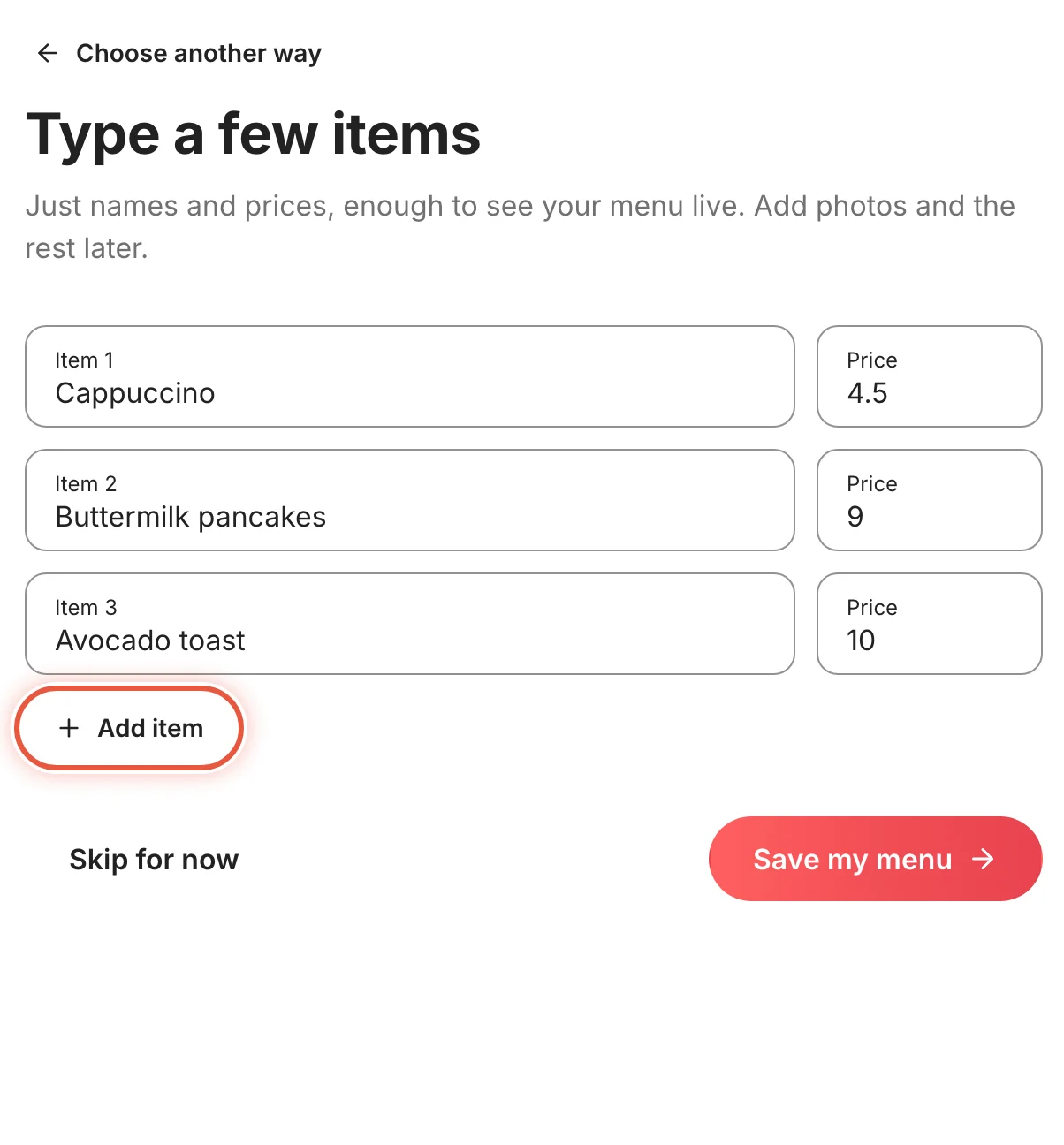
Choose Type a few items and write names and prices, nothing more. Use Add item for as many as you need. Your menu goes live with them, priced in your currency, and you add photos and descriptions from the dashboard whenever you like.
Start from a sample
Choose Start from a sample and pick the closest one: Café & restaurant, Bar & drinks or Shop, for a store that doesn't sell food. Each comes with 10 to 15 items, every one with a description and a real photo, and prices set in your currency. Tap Use this sample and your menu is ready.
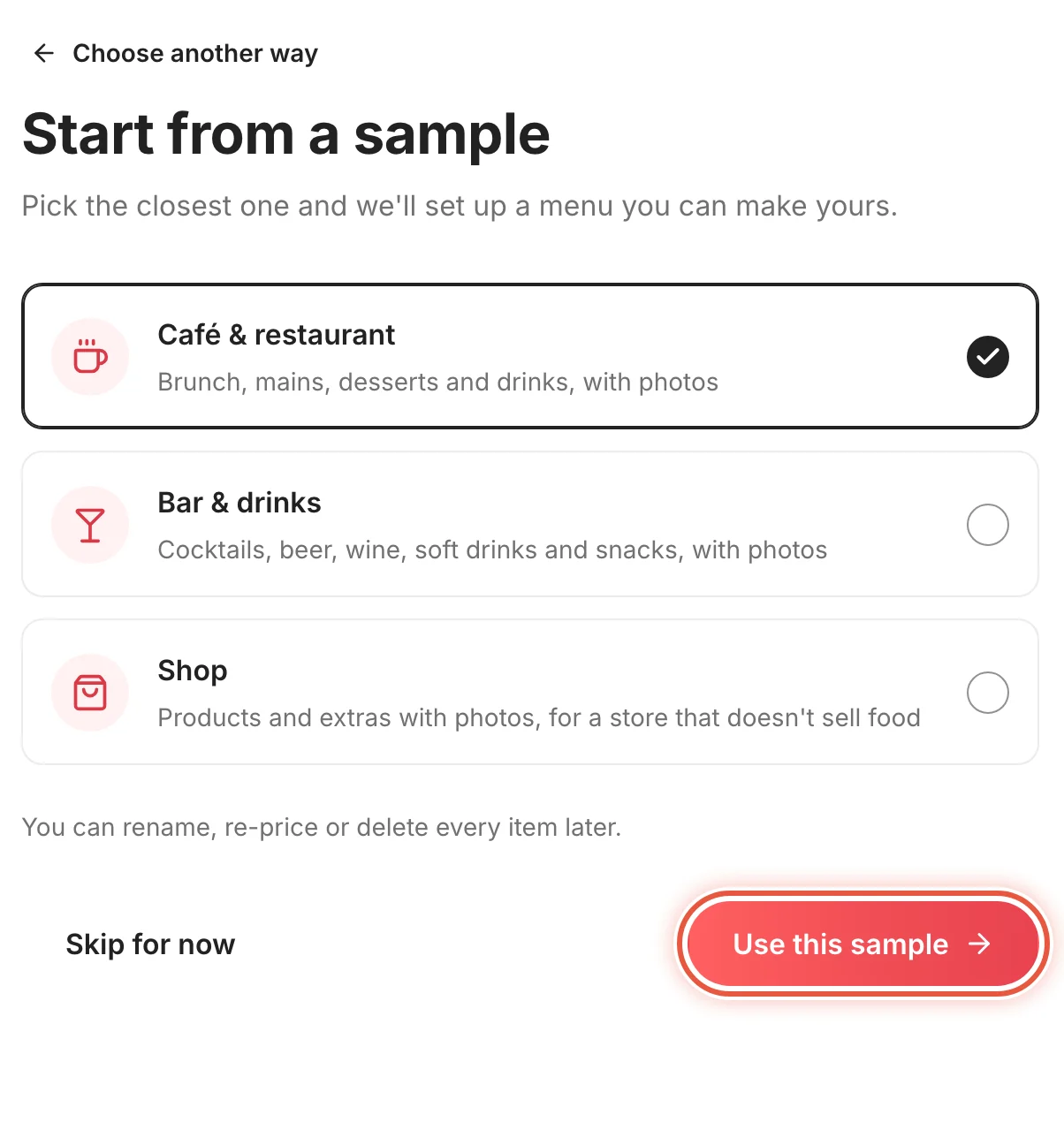
Until you change an item, the dashboard reminds you that This is a sample menu, with Edit items one tap away. Rename, re-price or delete anything to make it yours.
New here? Create your store and try it, or see how the QR code menu works.
Your first direct order, tonight.
Create your menu in minutes and get every Chef feature free for 14 days. Then stay on Basic for free, or upgrade.