
Here's how to change your menu design on the Style page: pick a template, set your brand colour and background, and choose whether item photos show.
Change your menu design with a template
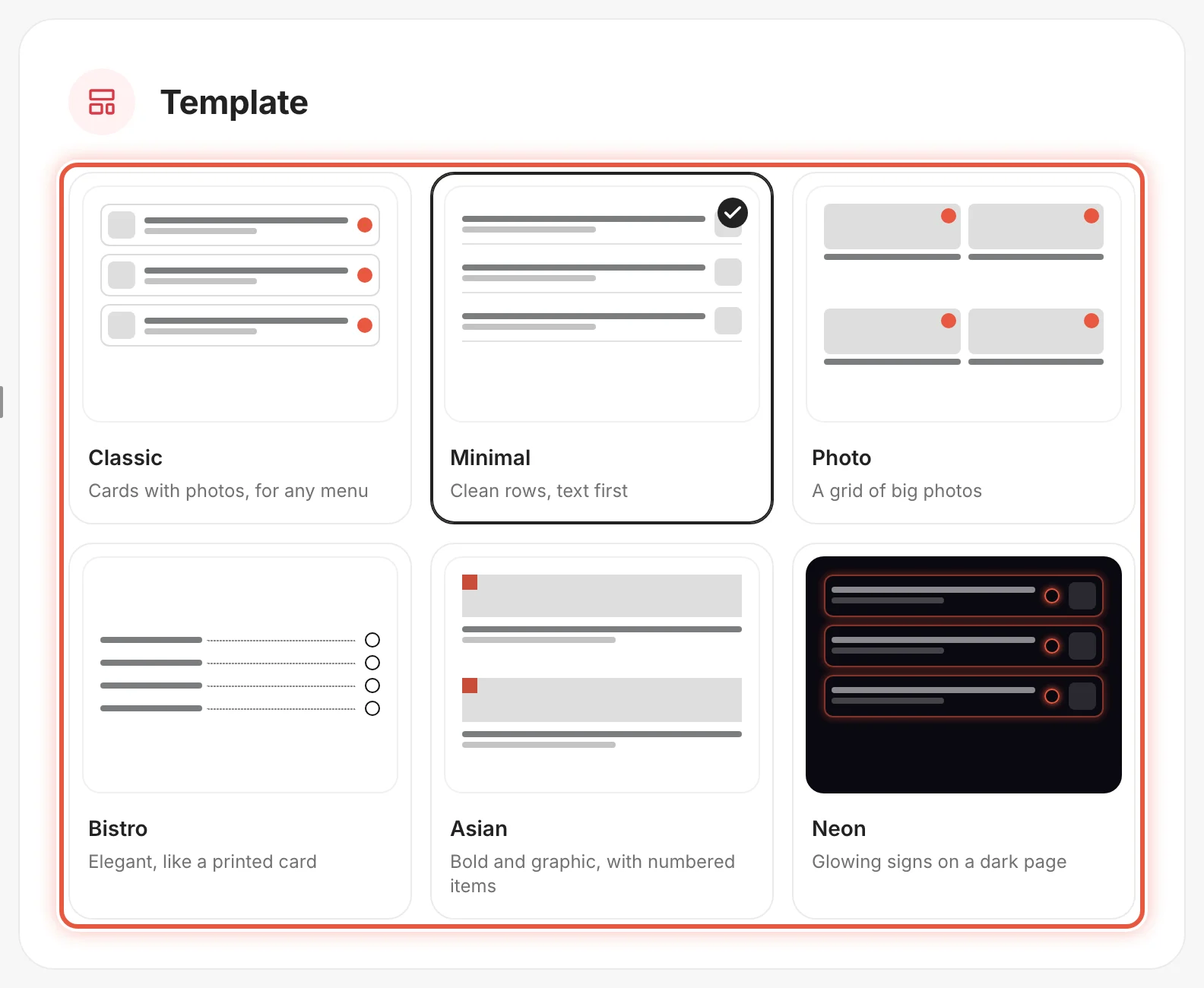
- In the sidebar, select Style.
- Under Template, pick Classic, Minimal, Photo, Bistro, Asian or Neon. The preview on the right shows your menu in it right away; switch it between Mobile and Desktop.
Photo and Asian show a grid of photos when at least half of your items have one, and a list otherwise.
Set your brand colour and item photos
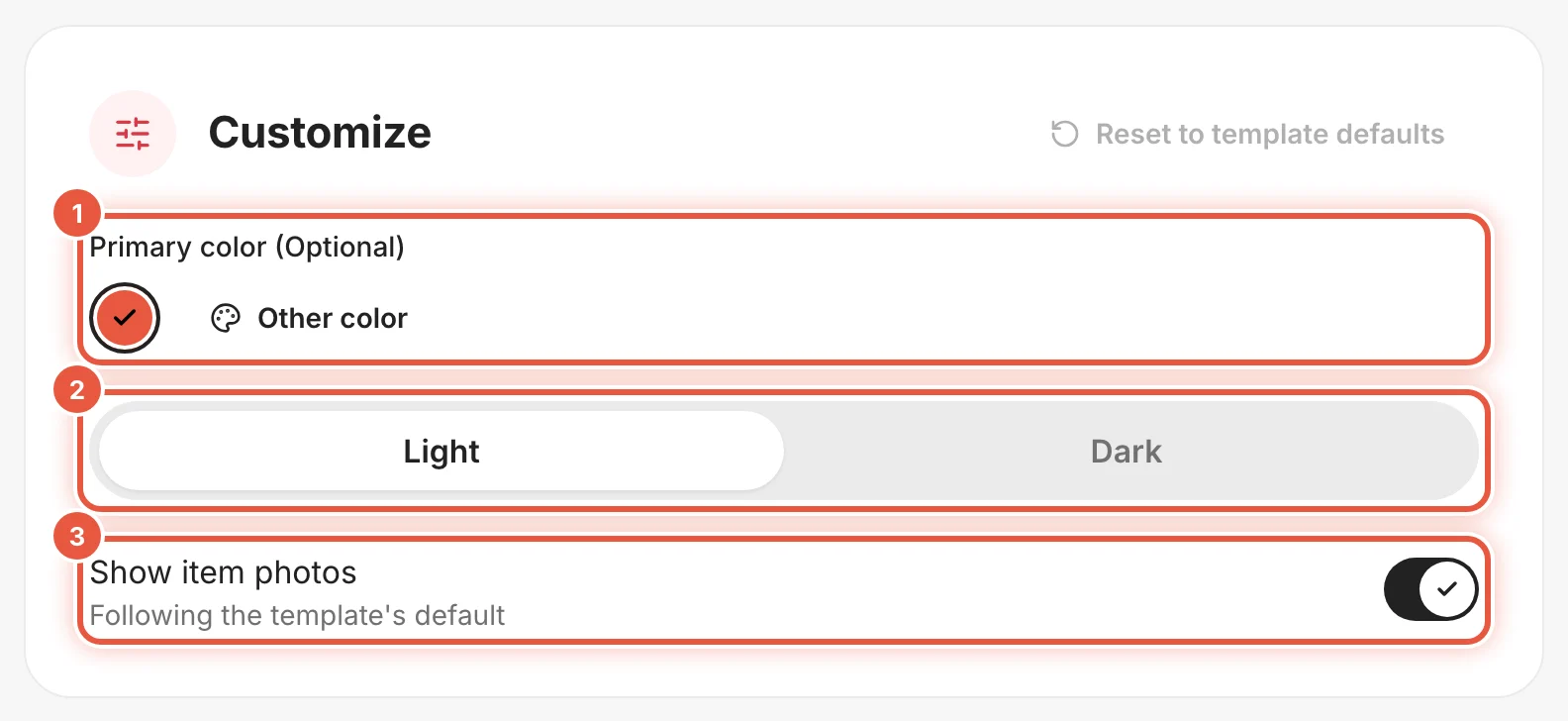
- Under Customize, pick your brand colour in Primary color (Optional), or select Other color for any shade.
- Choose a Light or Dark background.
- Turn Show item photos on or off.
Reset to template defaults takes these three back to the template's own.
Save your new design
Select Save and your QR code menu shows the new design at once. Cancel drops the changes you haven't saved.