
Here's how to set a minimum order and extra fees, such as a packaging fee or a service charge, separately for dine-in, pickup and delivery.
Add extra fees
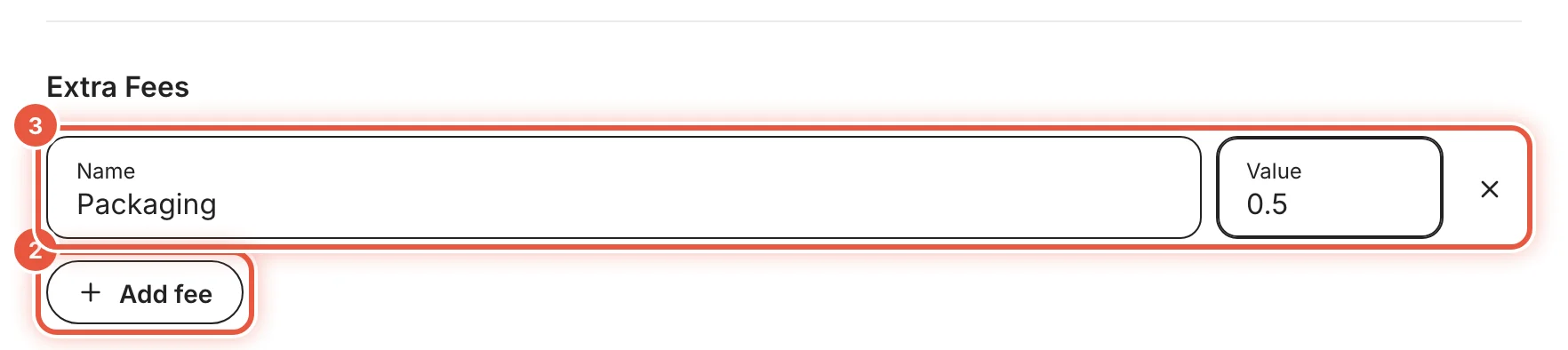
- In Ordering, open the tab of the order type: Dine-in, Pick-up or Delivery.
- Under Extra Fees, select Add fee.
- Type its Name, like "Packaging", and the amount in Value.
- Select Save.
The fee is a fixed amount added to every order of that type, on its own line at checkout. To charge for delivery by area or distance, set delivery fees instead.
Set a minimum order
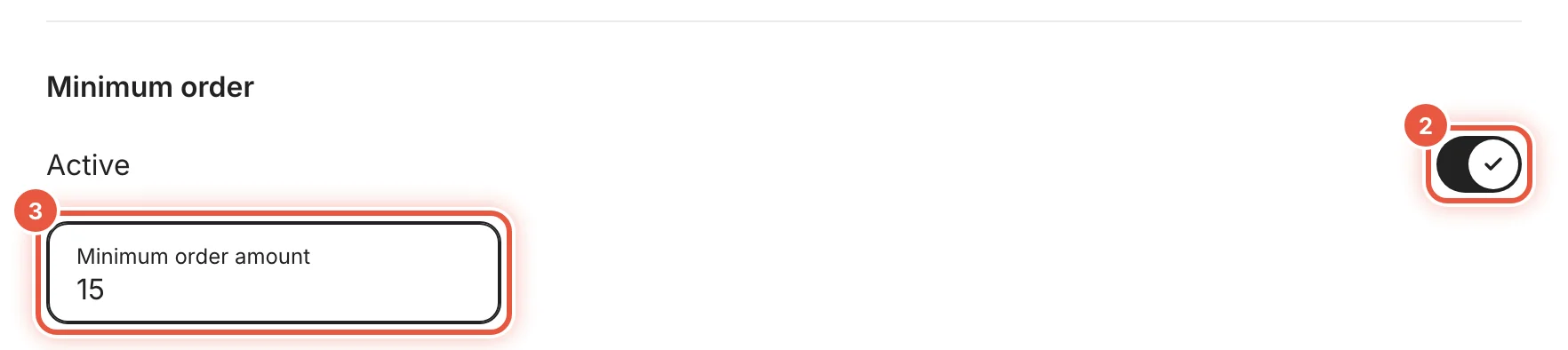
- Open the tab of the order type.
- Under Minimum order, switch on Active.
- Enter the Minimum order amount and select Save.
If the order total is below the minimum, guests see a message and can send the order only once they add more items.
Learn more about commission-free online ordering.