
Here's how to set up pickup orders, so guests order ahead and collect at your store, with pickup locations and a preparation time.
Set up pickup orders
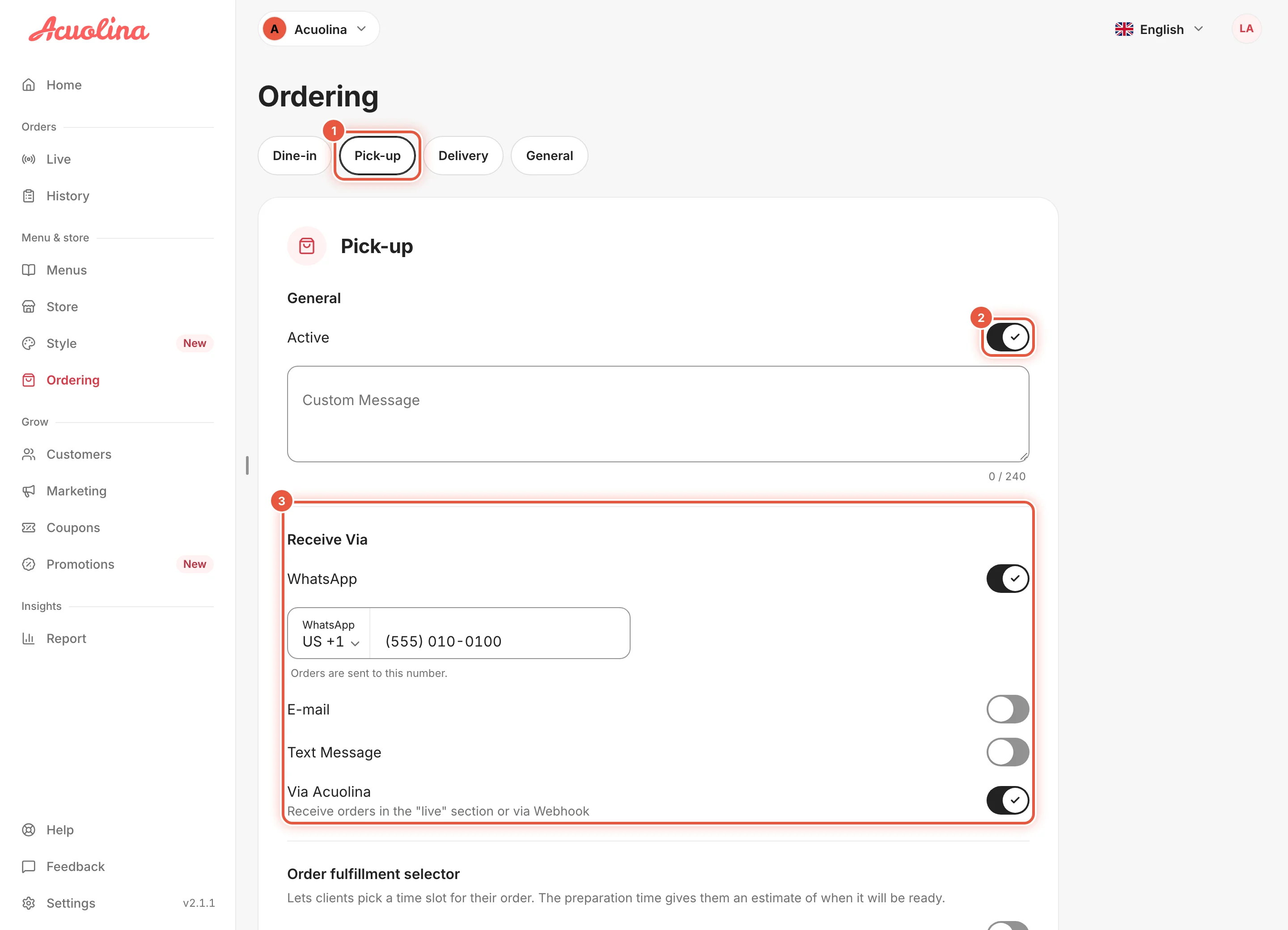
- In the sidebar, open Ordering, then the Pick-up tab.
- Switch on Active.
- Under Receive Via, choose where pickup orders reach you (see where orders arrive).
- Select Save.
At checkout, guests see your store's address with a link to the map.
Add pickup locations
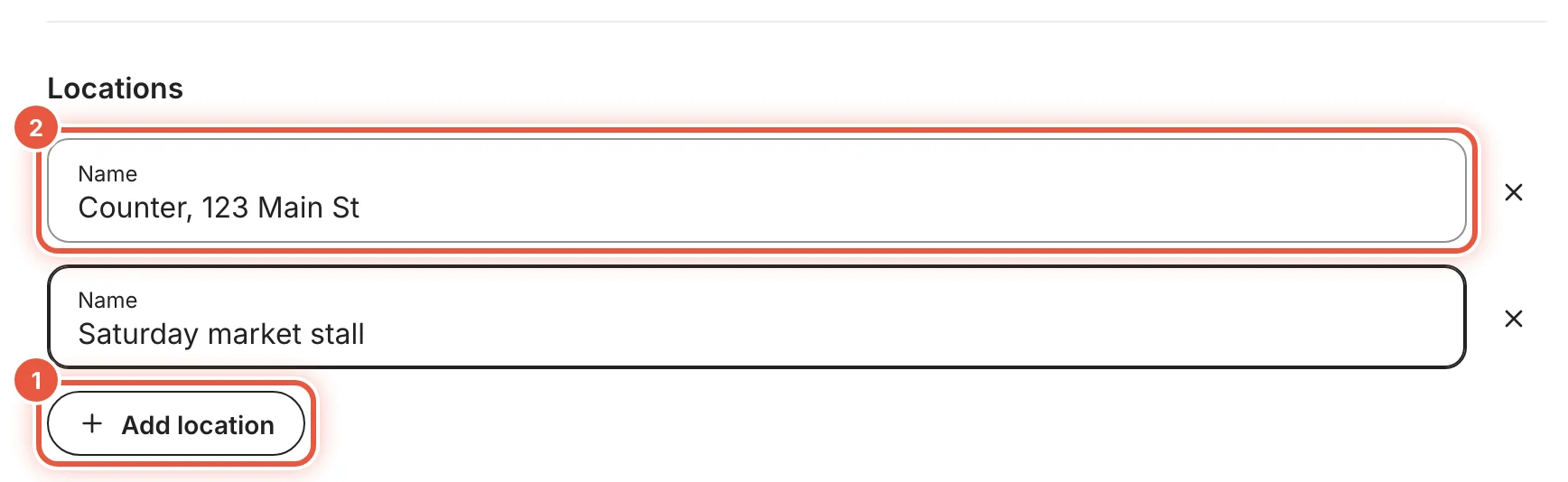
If guests can collect in more than one place:
- Under Locations, select Add location.
- Type where guests collect, such as a counter or a market stall. Repeat for each place.
- Select Save.
Guests then choose one of your pickup locations at checkout.
Set a preparation time
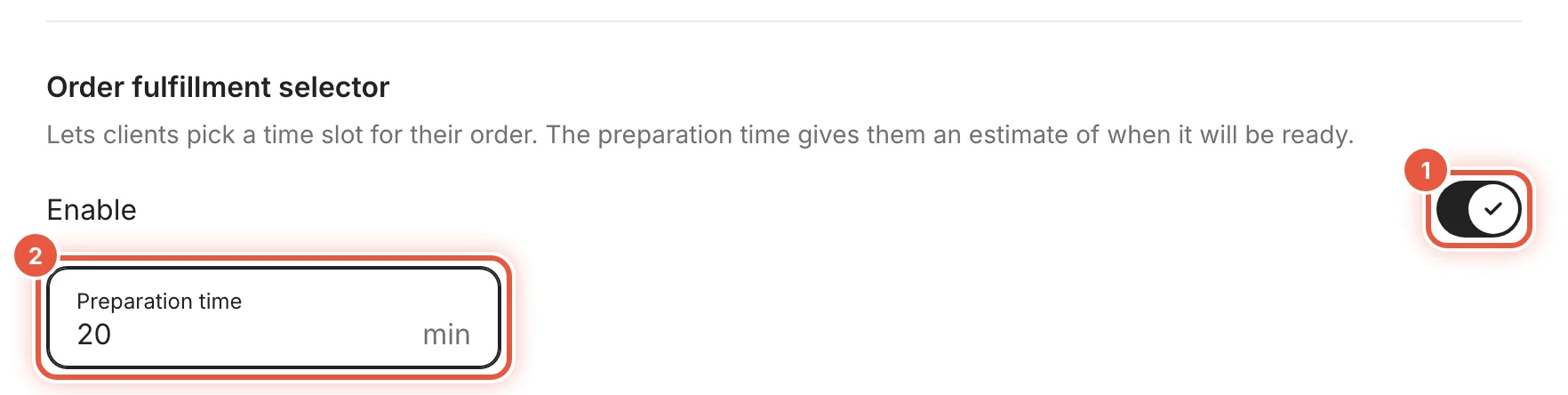
When pickup orders arrive by WhatsApp, text or email:
- Under Order fulfillment selector, switch on Enable.
- Enter your Preparation time in minutes and select Save.
Guests then choose as soon as possible or a later time: see how to schedule orders ahead.
Learn more about commission-free online ordering.