
Here's how to let guests schedule orders ahead for pickup or delivery: they choose as soon as possible or a later time slot today.
Turn on the order scheduler
- In Ordering, open the Pick-up or Delivery tab.
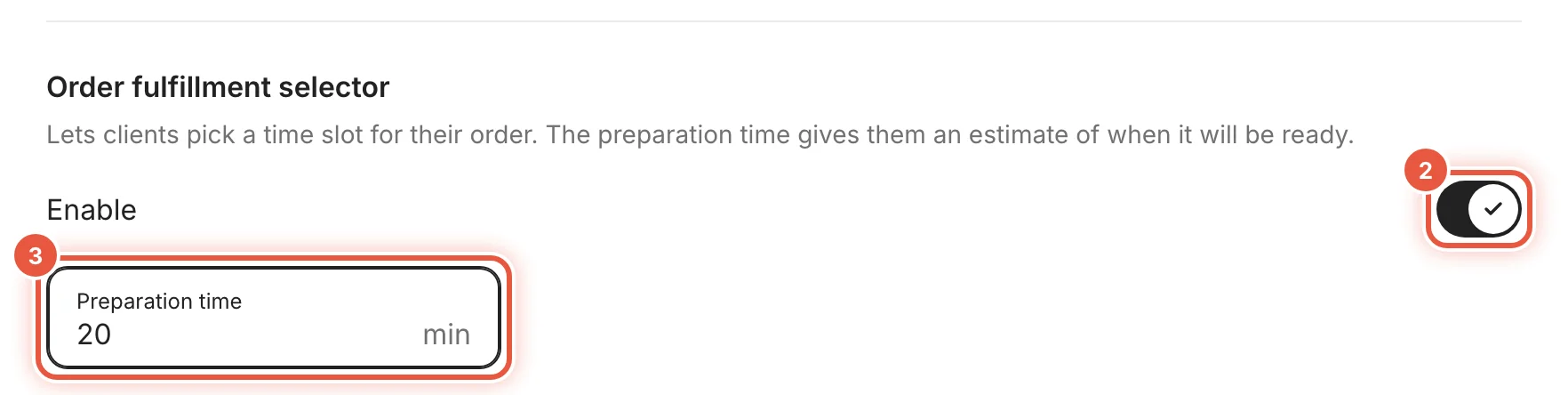
- Under Order fulfillment selector, switch on Enable.
- Enter the Preparation time in minutes and select Save.
The scheduler is there only when that order type arrives by WhatsApp, E-mail or Text Message: not with Via Acuolina, and not for dine-in. See where orders arrive.
What guests see
At checkout, guests choose:
- ASAP, with an estimate from your preparation time: "(15 - 25 min)" for 20 minutes.
- A 30-minute slot to order for later, such as a pickup time slot after work.
Slots start once the preparation time has passed and end at today's closing time, from your opening hours. Guests schedule while your store is open, and the time they pick is in the order message you receive.
Learn more about WhatsApp ordering.