
Here's how to send orders to your own system with a webhook, for a POS integration or your own tools: Acuolina posts every new order to your URL.
Add your webhook URL
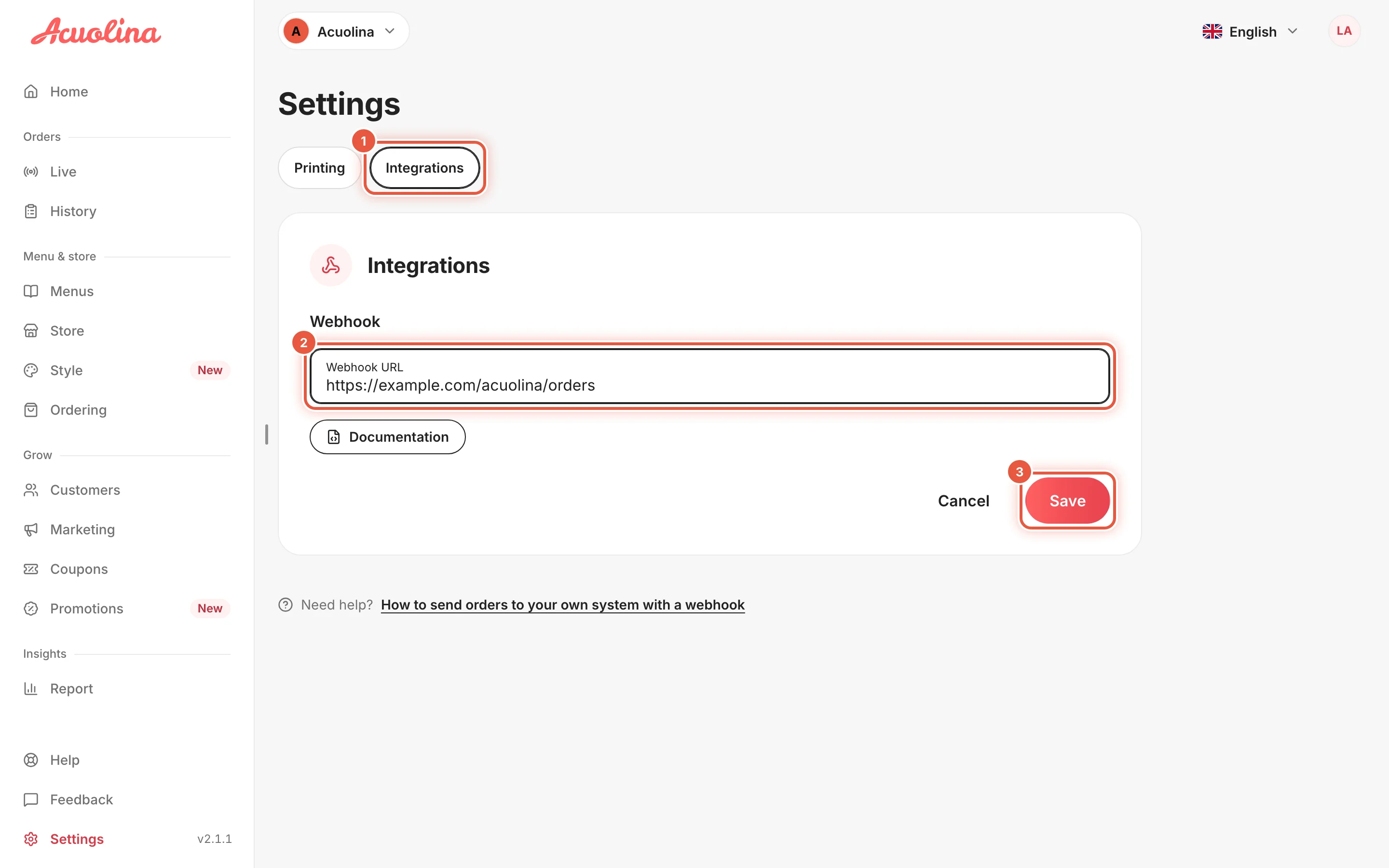
- In the sidebar, open Settings, then Integrations.
- Paste your Webhook URL. It must start with https://.
- Select Save.
What your system receives
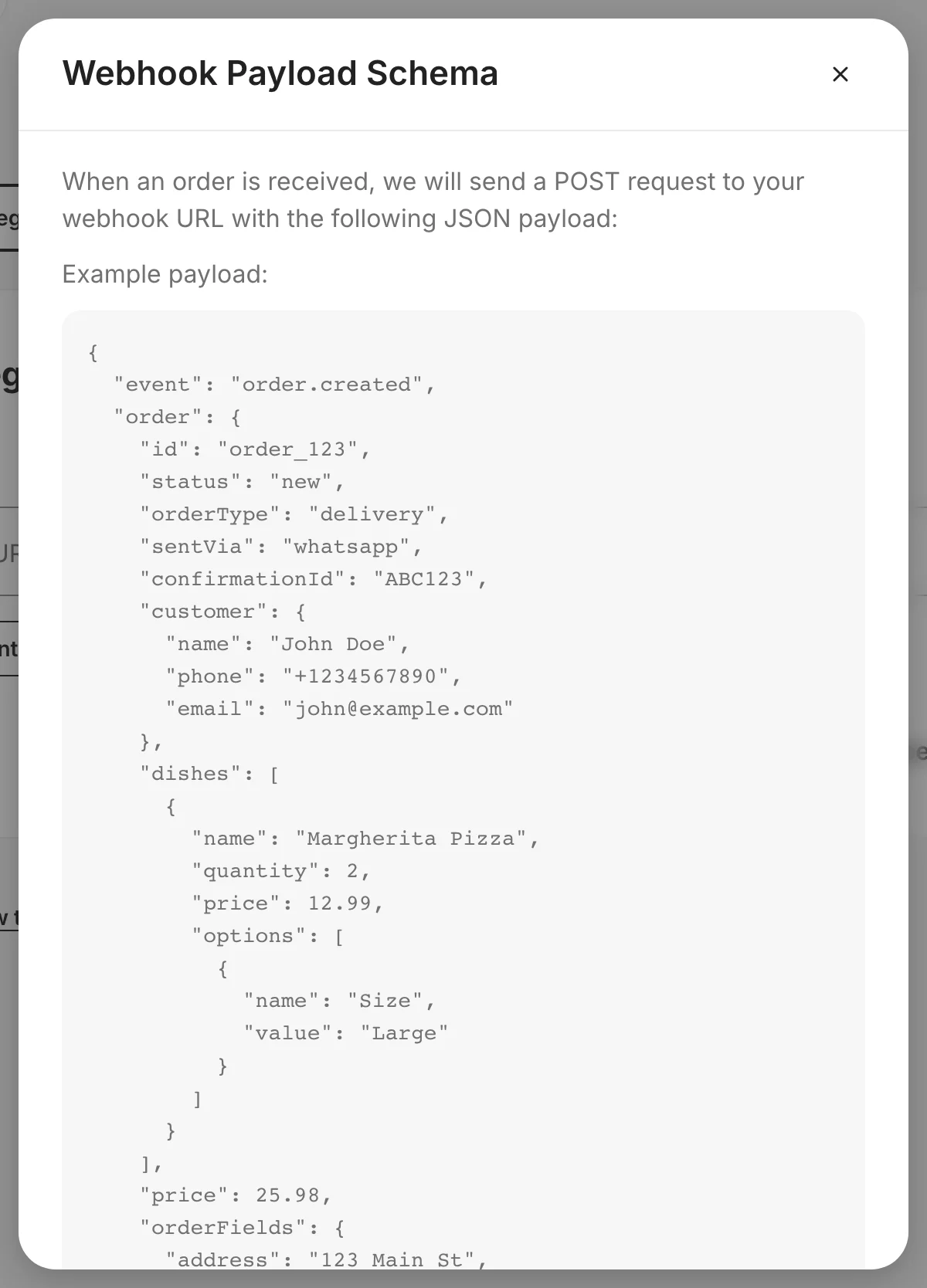
For every new order, whichever channel it came from, Acuolina sends a POST request with JSON:
- the event,
order.created; - the order: its items, prices, order type, channel, code, fields and delivery area;
- your store's id, name and link name.
Select Documentation for a full example. The request goes out once, when the order arrives: if your system doesn't answer, it isn't sent again, and the order is still on Live.
Learn more about commission-free online ordering.