
Here's how to set up dine-in orders, so guests order from the table by scanning your menu's QR code, and how to add table numbers to each order.
Set up dine-in orders
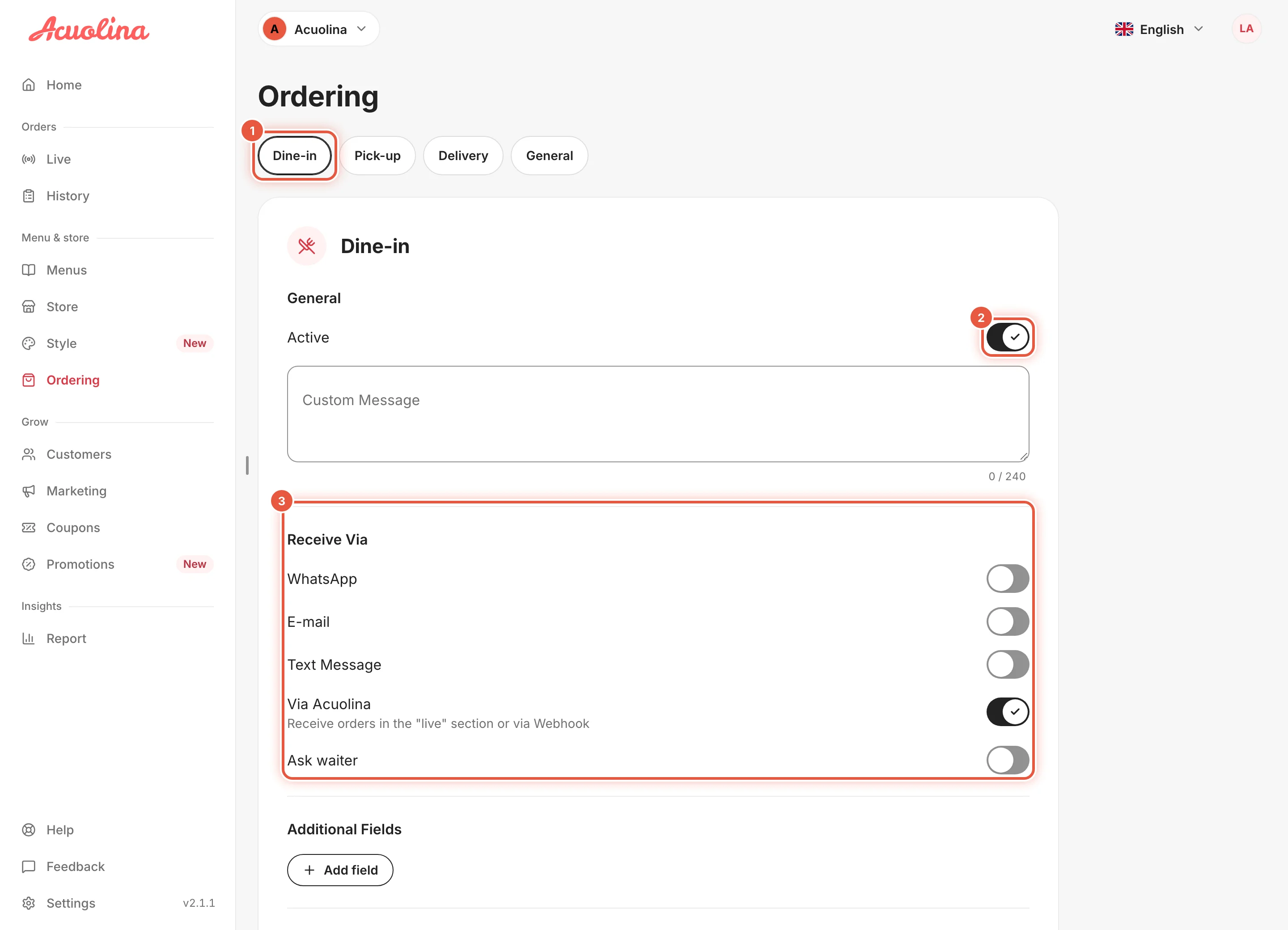
- In the sidebar, open Ordering, then the Dine-in tab.
- Switch on Active.
- Under Receive Via, choose Via Acuolina to get table orders on Live, or Ask waiter if guests should call staff to take their order. WhatsApp, text and email work too.
- Select Save.
Add table numbers
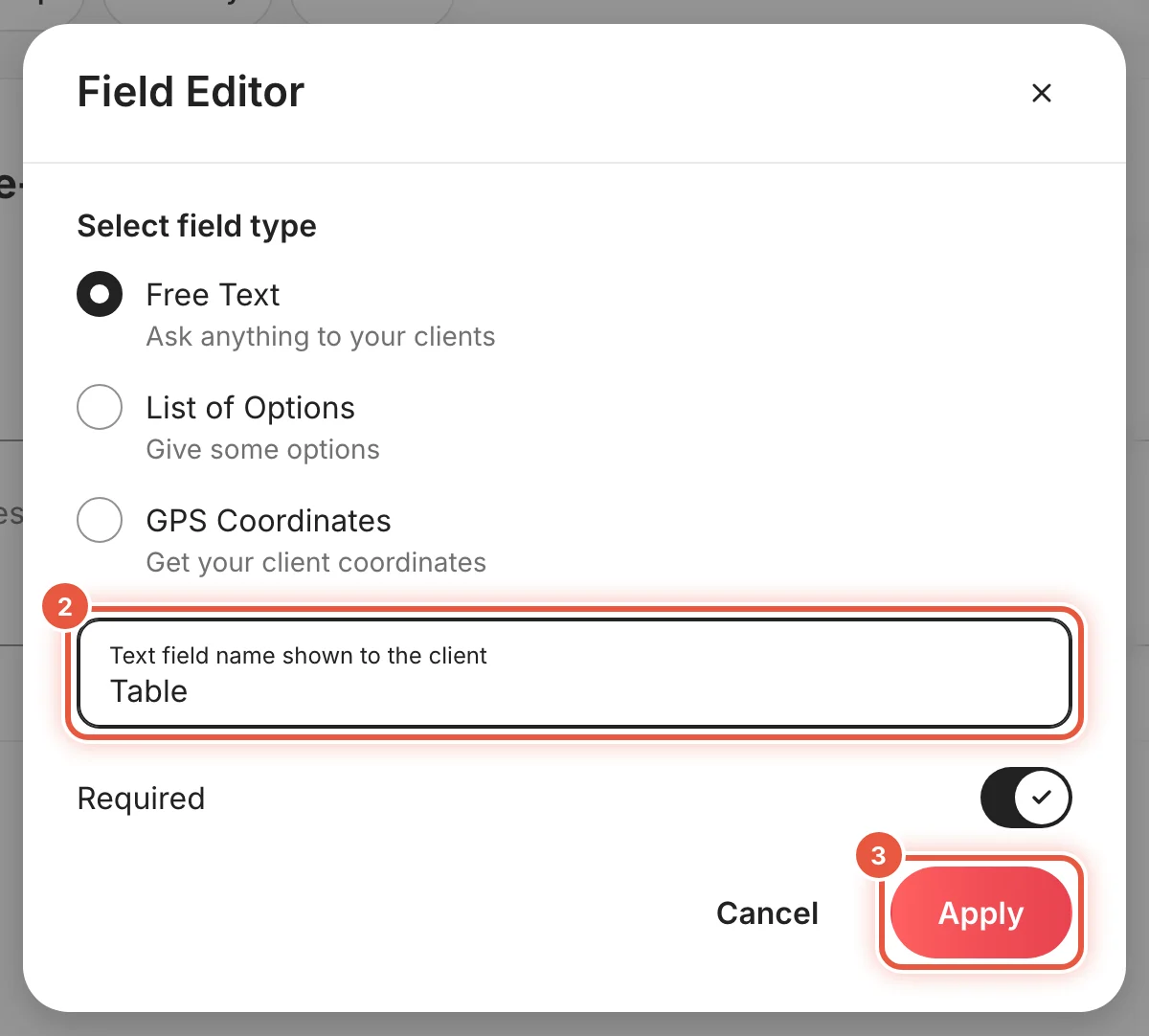
- Under Additional Fields, select Add field.
- Keep Free Text and name the field "Table".
- Select Apply, then Save.
Guests now type their table number before they send the order, and it shows on the order.
Order from the table without typing
Add the field's name and the number to each table's link: https://acuolina.com/en/your-store?table=12 fills in table 12 for the guest. Make one QR code per table with that link using the free QR code menu generator.
Learn more about QR table ordering.