
Here's how to take orders on WhatsApp, by text message, by email or right in your dashboard: turn on the order types your store offers and choose where each order reaches you.
Turn on pickup and delivery orders
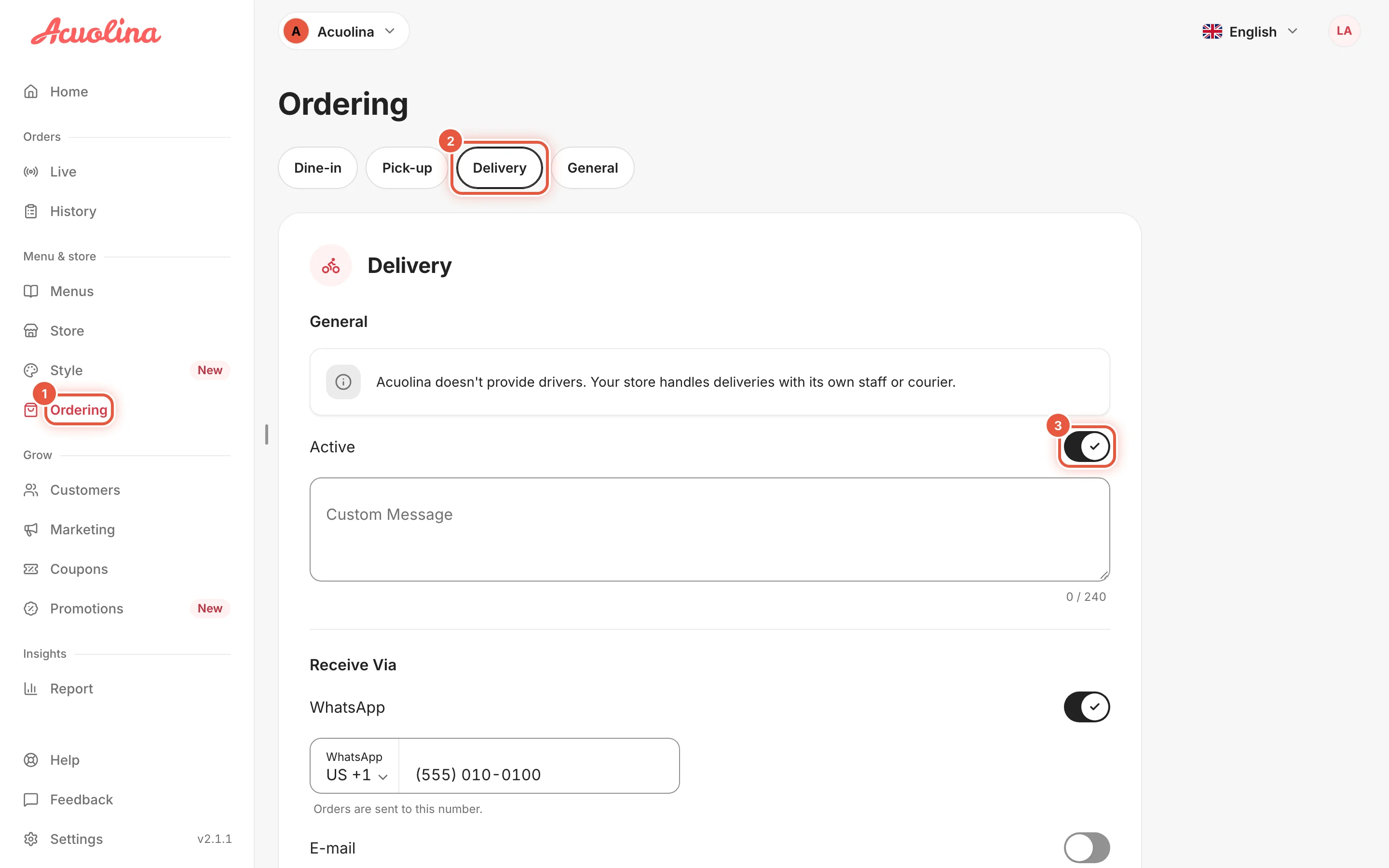
- In the sidebar, open Ordering.
- Pick a tab: Dine-in for table ordering, Pick-up or Delivery.
- Switch on Active and, if guests need to know something, write a Custom Message.
- Select Save.
Acuolina doesn't provide drivers: your store delivers with its own staff or courier.
Take orders on WhatsApp or in the dashboard
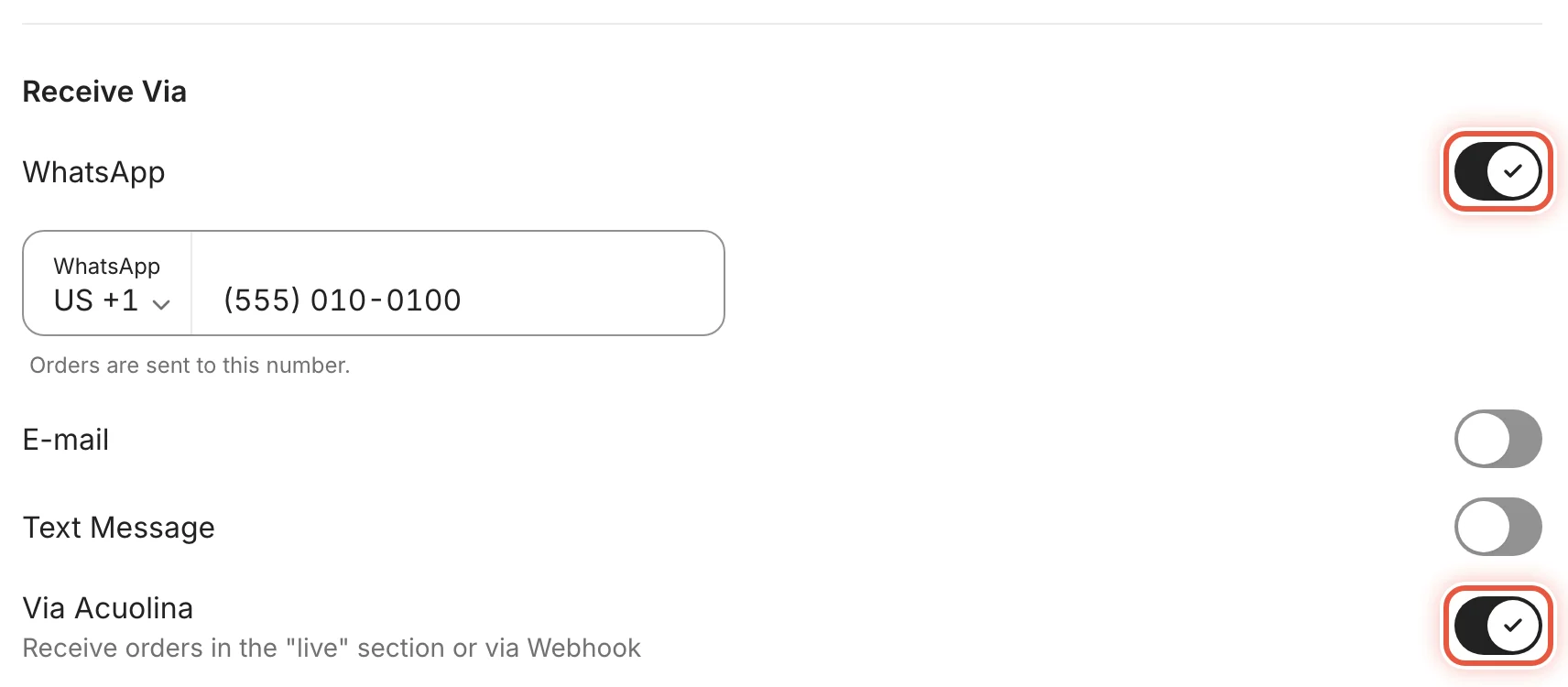
Under Receive Via, turn on where orders reach you:
- WhatsApp or Text Message: the guest's phone opens a message with the whole order, ready to send to the number you enter.
- E-mail: the order goes to your store's email address.
- Via Acuolina: the order arrives on Live in your dashboard.
Whichever you choose, every order is also saved on Live, so you can manage incoming orders in one place.
Set fields, delivery areas and fees
Further down each tab:
- Additional Fields: what guests fill in, such as their name or address. Phone and email are always there.
- Extra Fees: a fee added to every order of that type, like packaging.
- Areas (delivery cost per area): on Delivery, the neighborhoods you deliver to, each with its fee. Delivery Radius & Fare prices delivery by distance instead.
- Minimum order: the smallest order guests can send.
Learn more about WhatsApp ordering and table ordering.