
Here's how to ask guests for extra information when they order, with custom order fields and a message on the checkout page.
Add custom order fields
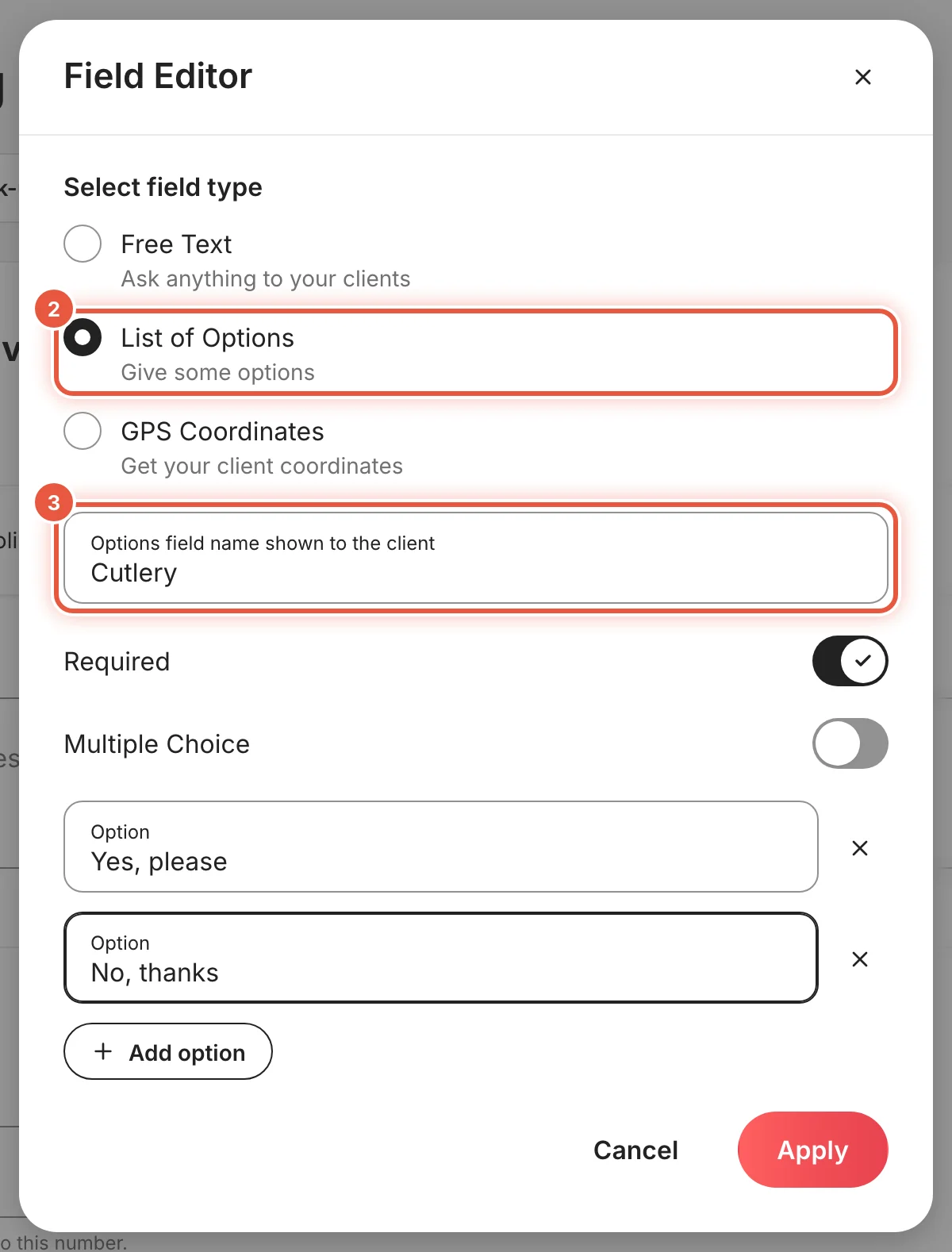
- In Ordering, open the tab of the order type and, under Additional Fields, select Add field.
- Choose a type: Free Text for a name or an address, List of Options for set answers, or GPS Coordinates for a point on a map.
- Name the field and switch on Required if guests must fill it in. For a list, add each answer with Add option.
- Select Apply, then Save.
Phone and email are always on the list: make them required or hide them. Answers show on the order and in the order message, and returning guests find theirs filled in.
Add a message for guests
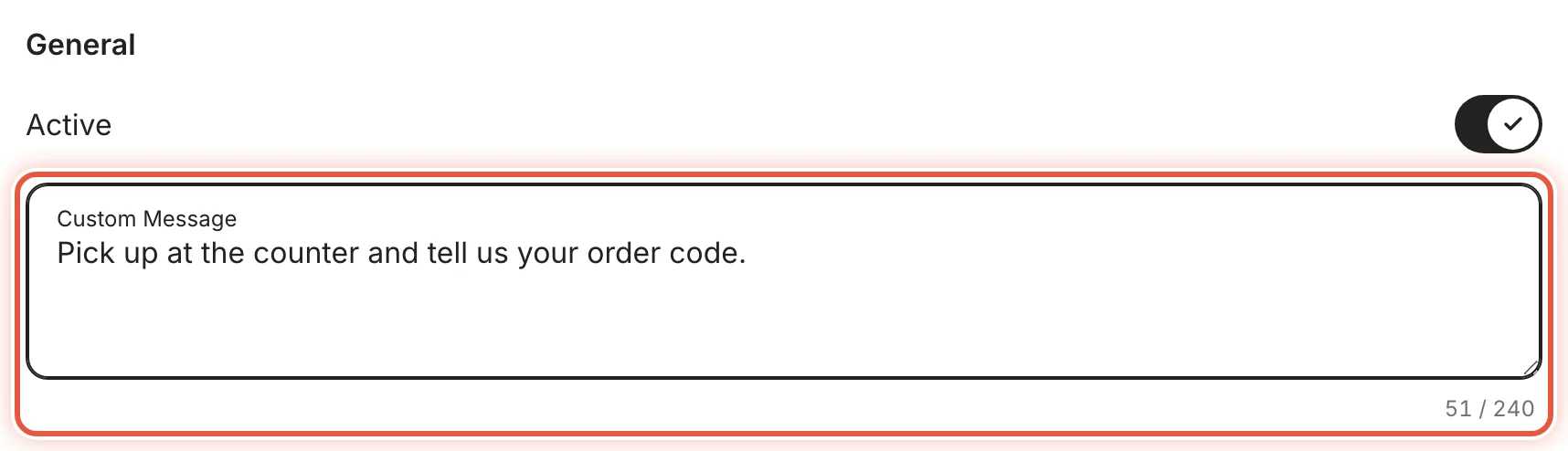
- Under General, write a Custom Message: where to collect, or how you deliver.
- Select Save.
Guests read it at checkout, above their details. To add the date and time to the order message, open the General tab next to Delivery and switch on Show date and time.
Learn more about commission-free online ordering.