
Printer not printing orders? Open Settings, then the Printing tab, and check these in order.
Printer not printing orders
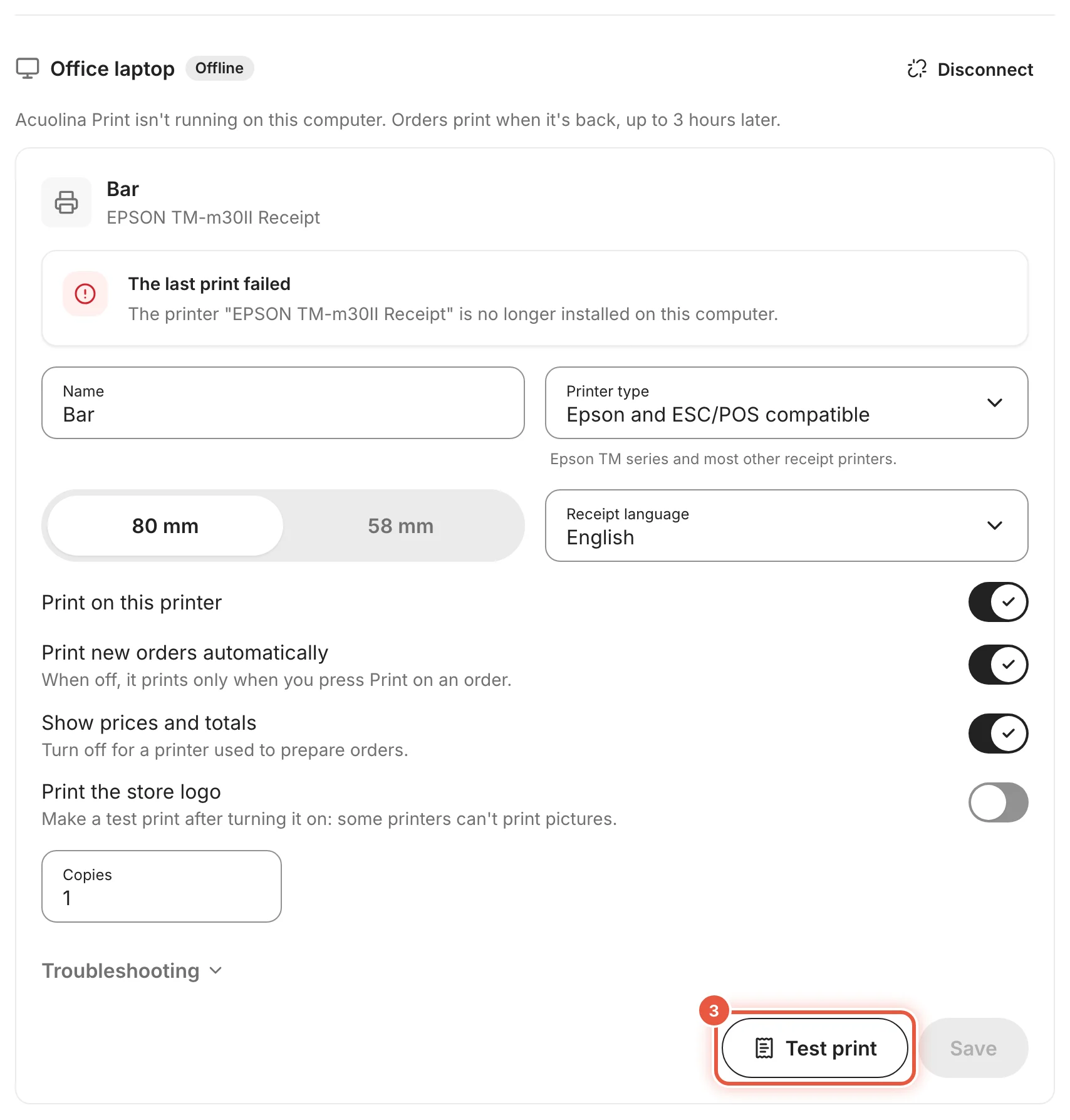
- Is the computer Online? Offline means Acuolina Print isn't running there: open it. Orders print when it's back, up to 3 hours later.
- Is the printer on? Its Print on this printer and Print new orders automatically must be on. No printer listed? Tick it in the app.
- Select Test print. If it fails, The last print failed says why, for example a printer no longer installed in Windows.
Fix strange characters on receipts
Turn on Simple receipt under Troubleshooting, or set the Printer type to Any printer (Windows driver). See receipt printer settings.
Messages you may see
- "This code is wrong or has expired": the pairing code expired after ten minutes. Select Get a new code.
- "No printer is on. Set one up in Settings, Printing.": turn on Print on this printer.
- "This computer is no longer connected to Acuolina": it was disconnected. Pair it again.
More about kitchen order printing.