
Here's how to print orders automatically with Acuolina Print for Windows, a free app that sends every new order to your receipt printer as it arrives.
Install Acuolina Print for Windows
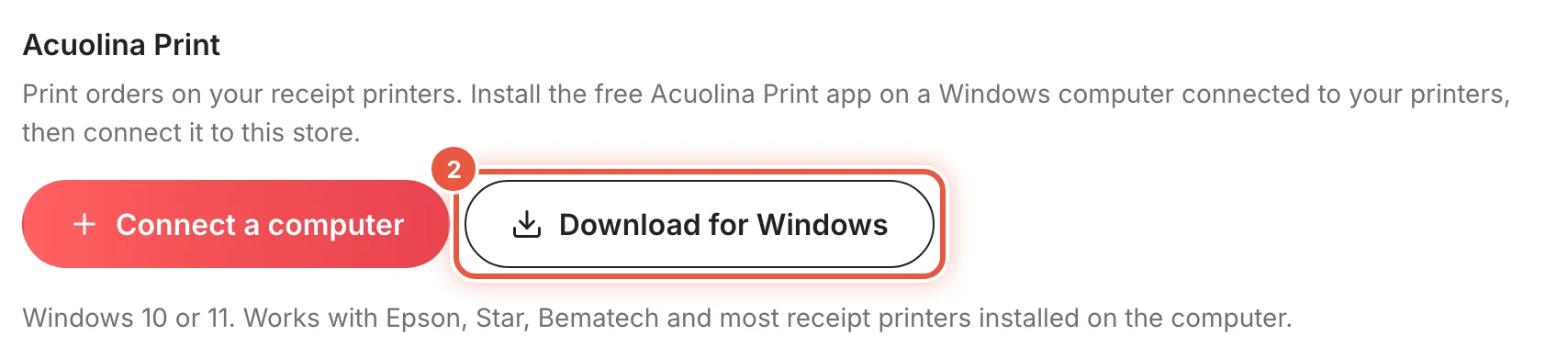
You need a computer with Windows 10 or 11 and your printer installed on it. Epson, Star, Bematech and most thermal receipt printers work, over USB or the network.
- In the sidebar, open Settings, then the Printing tab.
- Select Download for Windows and install the app on that computer.
Pair the app with your store
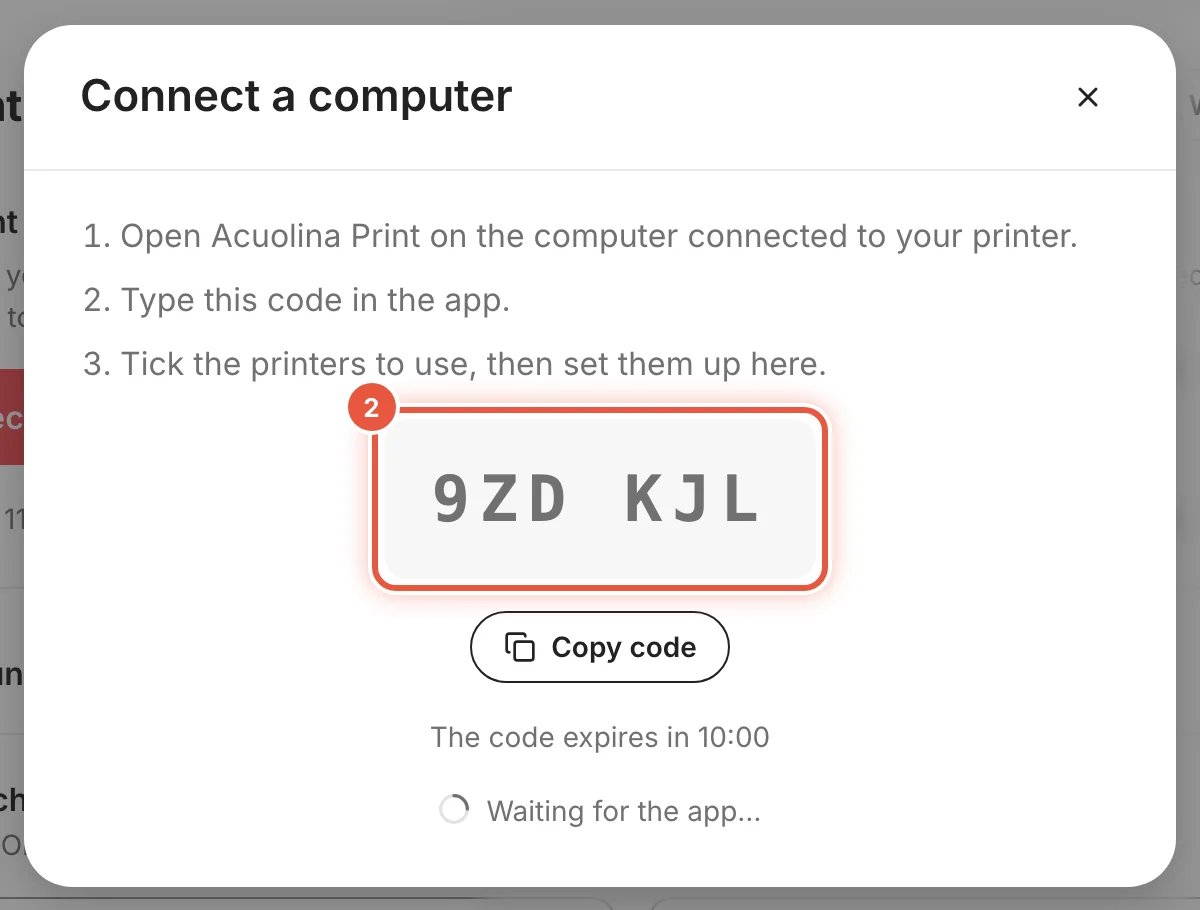
- In the dashboard, select Connect a computer. A six-character code appears, valid for ten minutes.
- Open Acuolina Print on the computer and type the code.
- In the app, tick the printers to use.
The computer then shows as Online, with its printers below.
Print orders automatically
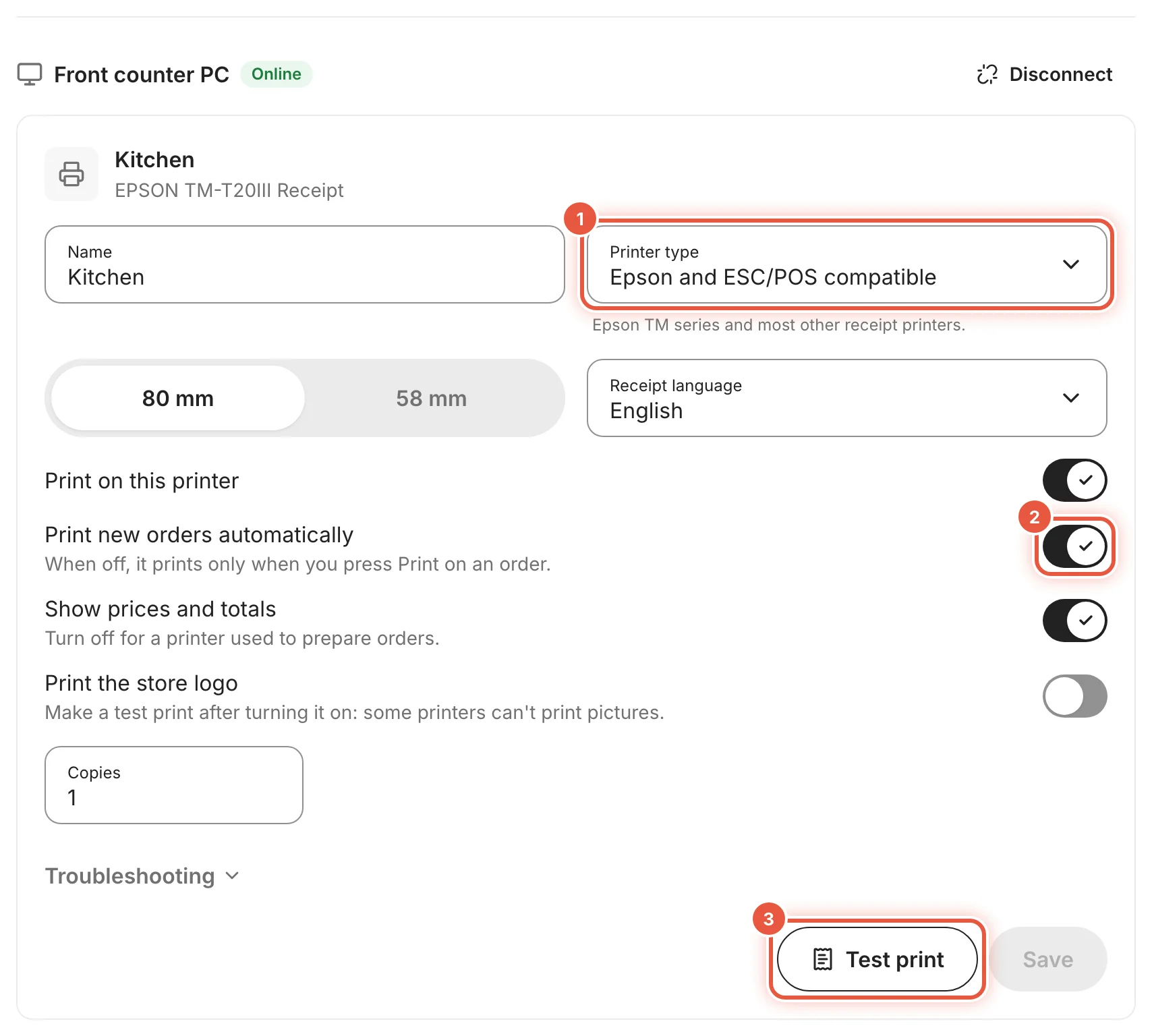
- For each printer, choose the Printer type and the Paper width.
- Keep Print new orders automatically on. For a kitchen ticket printer, you can turn off Show prices and totals.
- Select Save, then Test print to check the result.
From then on, orders print by themselves while the app runs. If the computer is off, they print when it's back, up to 3 hours later. To print an order again, open ⋮ on Live and select Print.
Read more about kitchen order printing, or how to manage incoming orders.