
Here's how to install Acuolina Print, the free app that prints your orders, on the Windows computer your receipt printer is connected to.
Install Acuolina Print
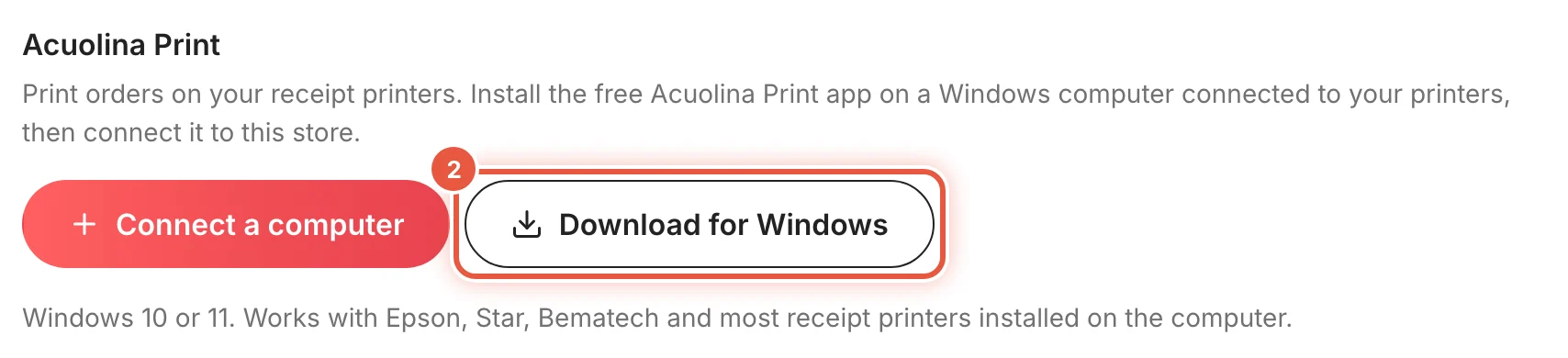
- On that computer, open Settings, then the Printing tab.
- Select Download for Windows.
- Open the downloaded file. If Windows SmartScreen says "Windows protected your PC", select More info, then Run anyway: the installer isn't signed yet. No administrator password is needed.
Pair the printer with your store
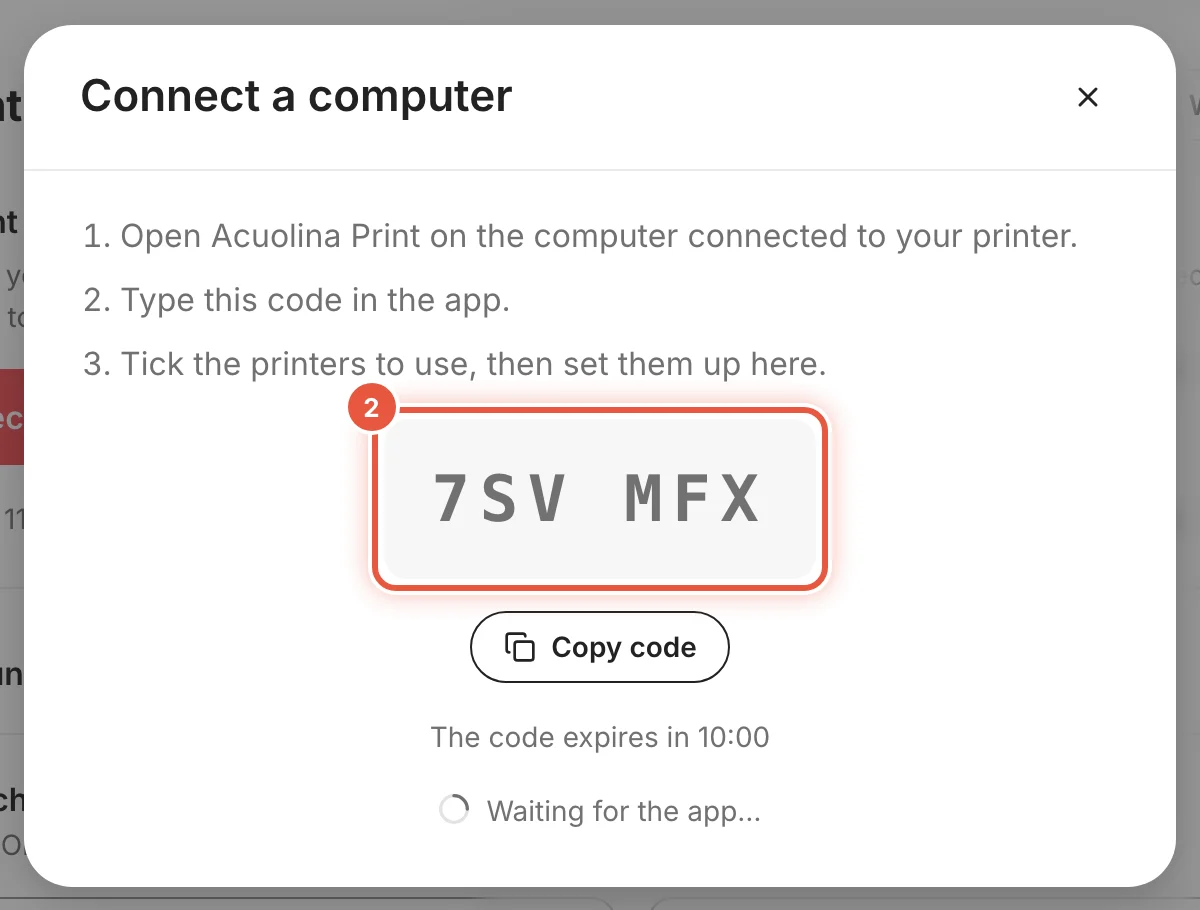
- In the dashboard, select Connect a computer.
- Type the six-character code in Acuolina Print. It's valid for ten minutes.
- In the app, tick the printers to use.
The app keeps itself up to date. Next, choose your receipt printer settings. More about kitchen order printing.