
Here's how to manage incoming orders with Acuolina: follow them on Live as they arrive, move them along as you prepare them, add an order by hand and find past orders in History.
Manage incoming orders on Live
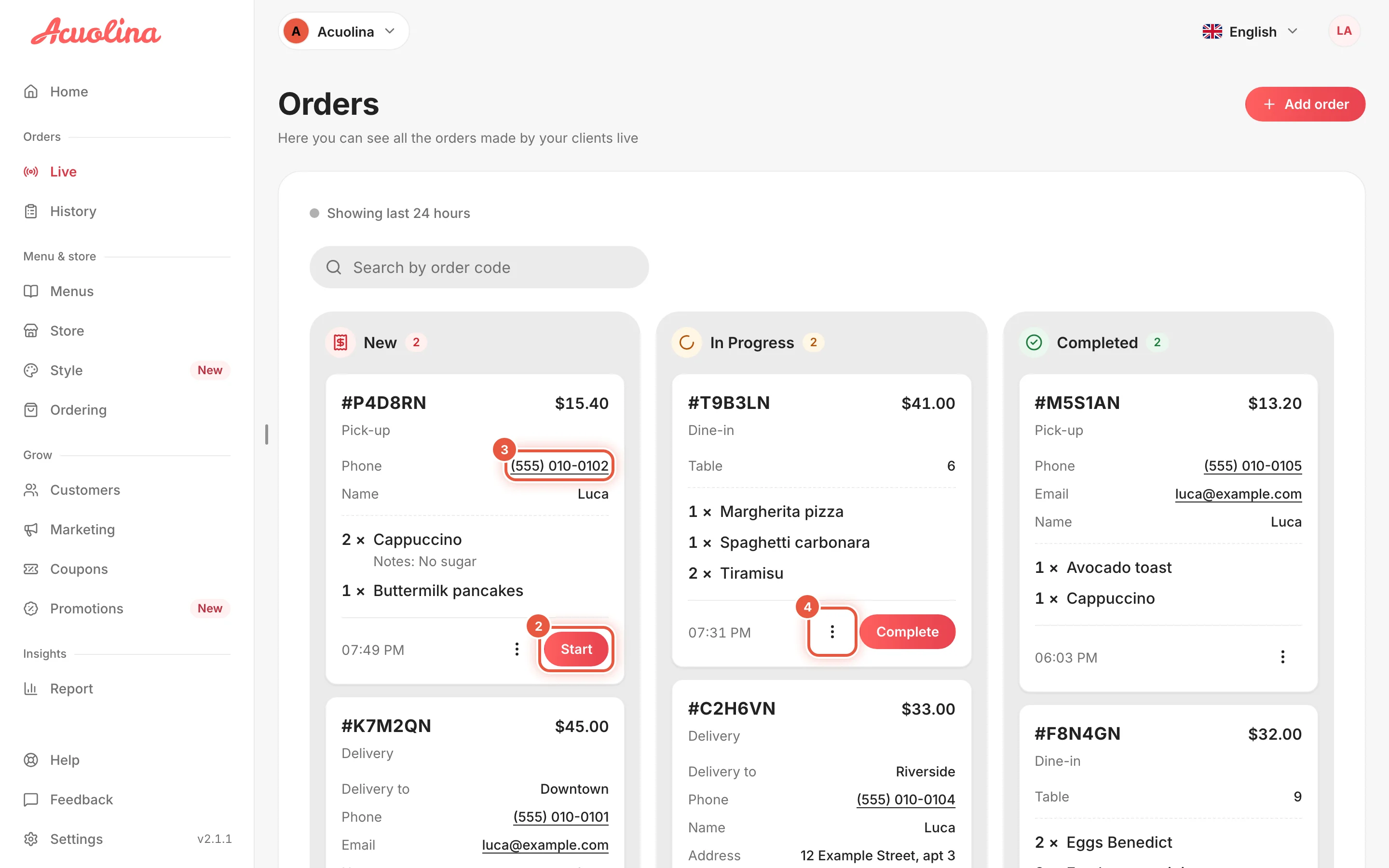
Live shows your live orders from the last 24 hours in three columns: New, In Progress and Completed. When an order comes in, the dashboard plays a sound and shows a red badge on Live.
- Read the order on its card: the type, the guest's details and the items.
- Select Start when you begin preparing it, then Complete when it's ready or on its way.
- Select the guest's phone number to call them or message them on WhatsApp.
- Open ⋮ to View details, Edit, Print or Delete the order.
To find one order fast, search by its code.
Add an order by hand
Took an order over the phone or at the counter? Add it so it's with the others.
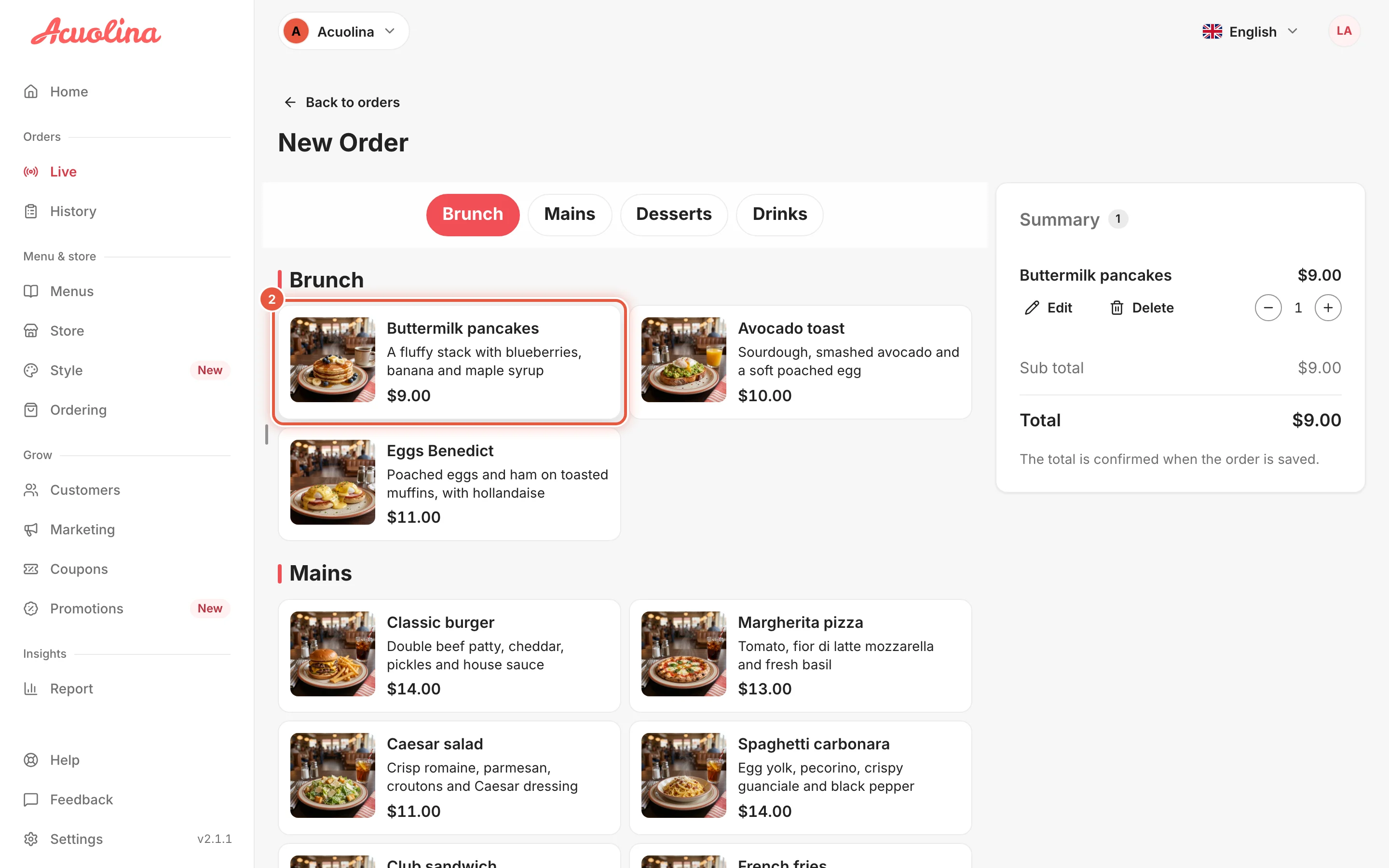
- On Live, select Add order.
- Pick the items from your menu, then select Review order.
- Choose the Order type, fill in the guest's details and select Save.
Find past orders in History
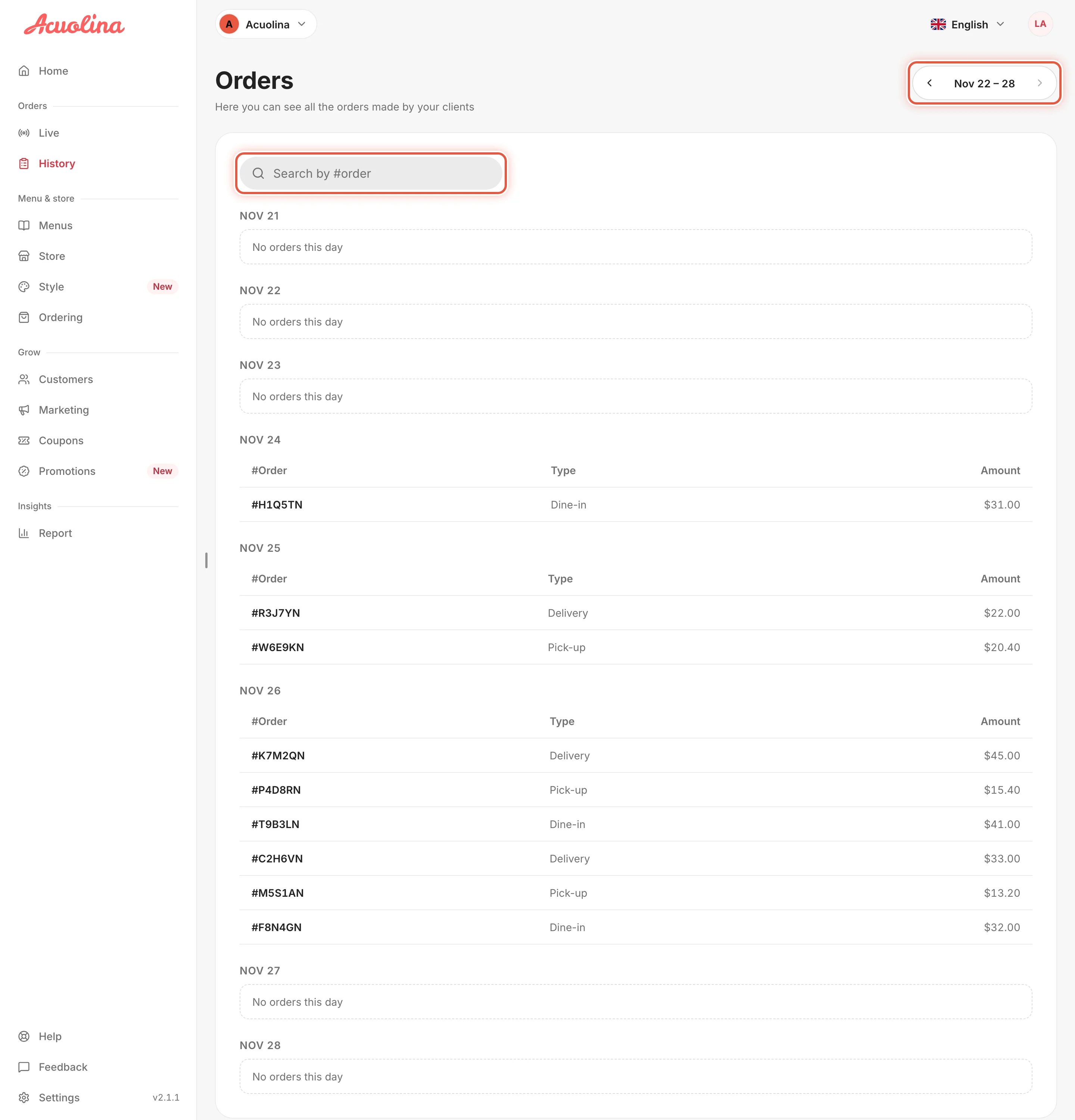
History is your order history, one week at a time: every day with its orders' codes, types and amounts. Use the arrows to change week, or search by order code. Select an order to see it, print it or delete it.
Orders reach you without commission, from your online ordering menu. To get them on paper too, print orders automatically.