
Here's how to change your menu’s colour: one brand colour for your buttons, prices and highlights, on every plan.
Pick your brand colour
- In the sidebar, select Style.
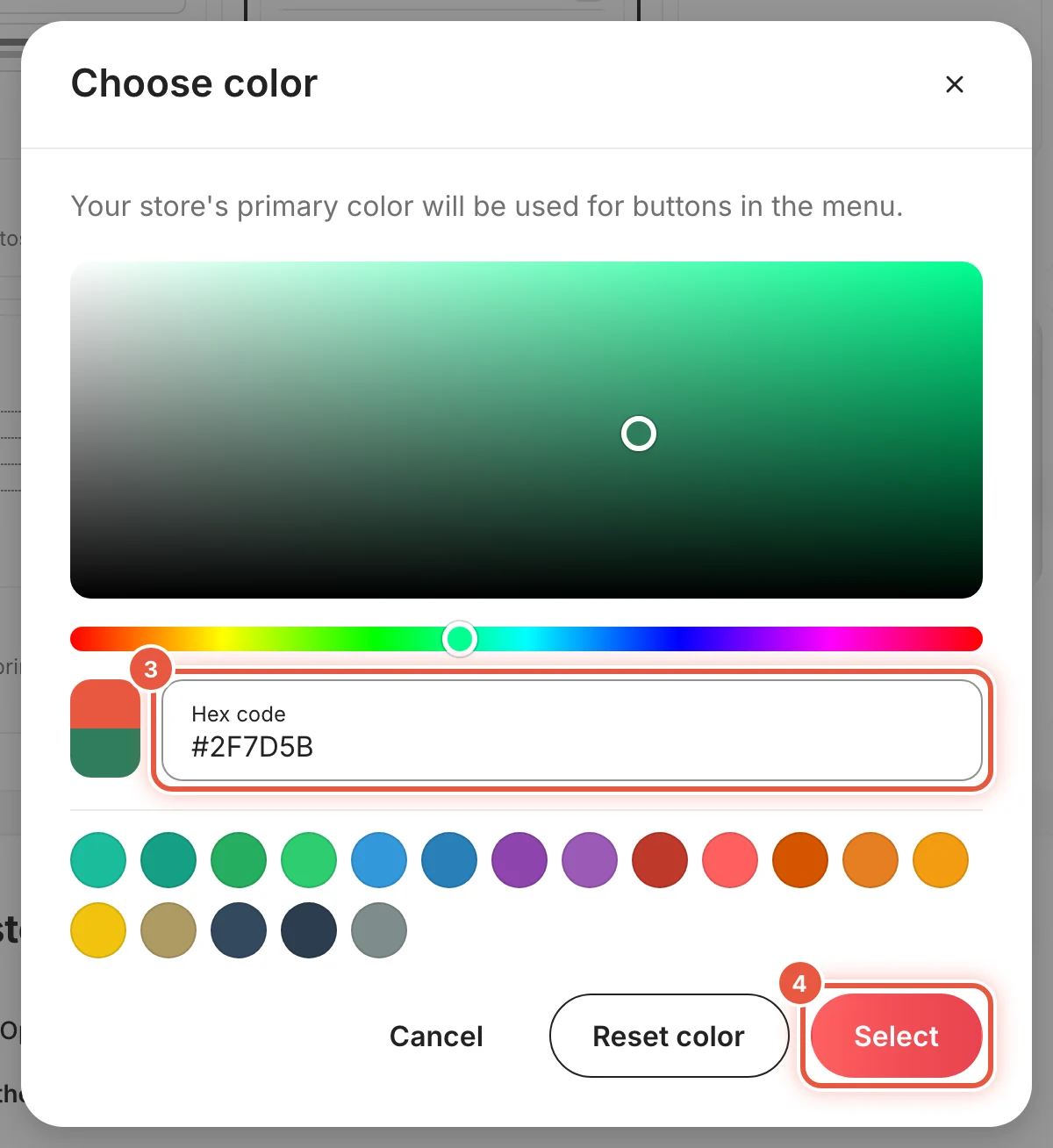
- Under Customize, next to Primary color (Optional), select Other color.
- Drag across the colour area and the strip below it, or type a colour code in Hex code. To use the colour from your logo, type the code your designer gave you, such as
#2f7d5b. - Select Select.
Reset color in the same dialog takes your menu back to the default colour.
Save your new colour
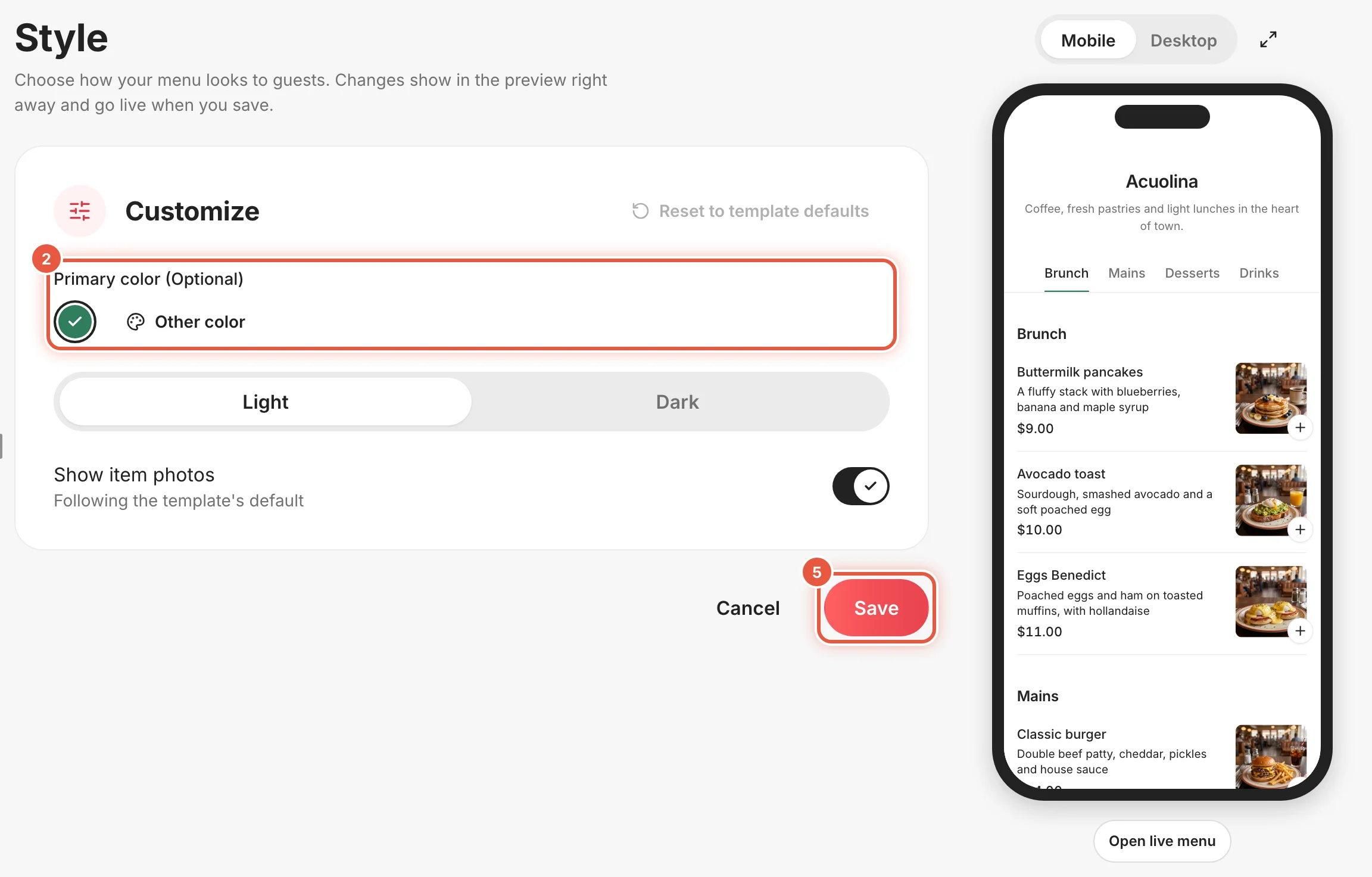
- Check the preview on the right, then select Save. Your QR code menu and its order buttons use the new colour at once.
Your brand colour works with every template: change the template and it keeps your colour. Reset to template defaults takes the colour, background and photo choice back to the template's own.