
Here's how to show or hide item photos on your menu at once, without removing a single photo from your items.
Show or hide item photos on the Style page
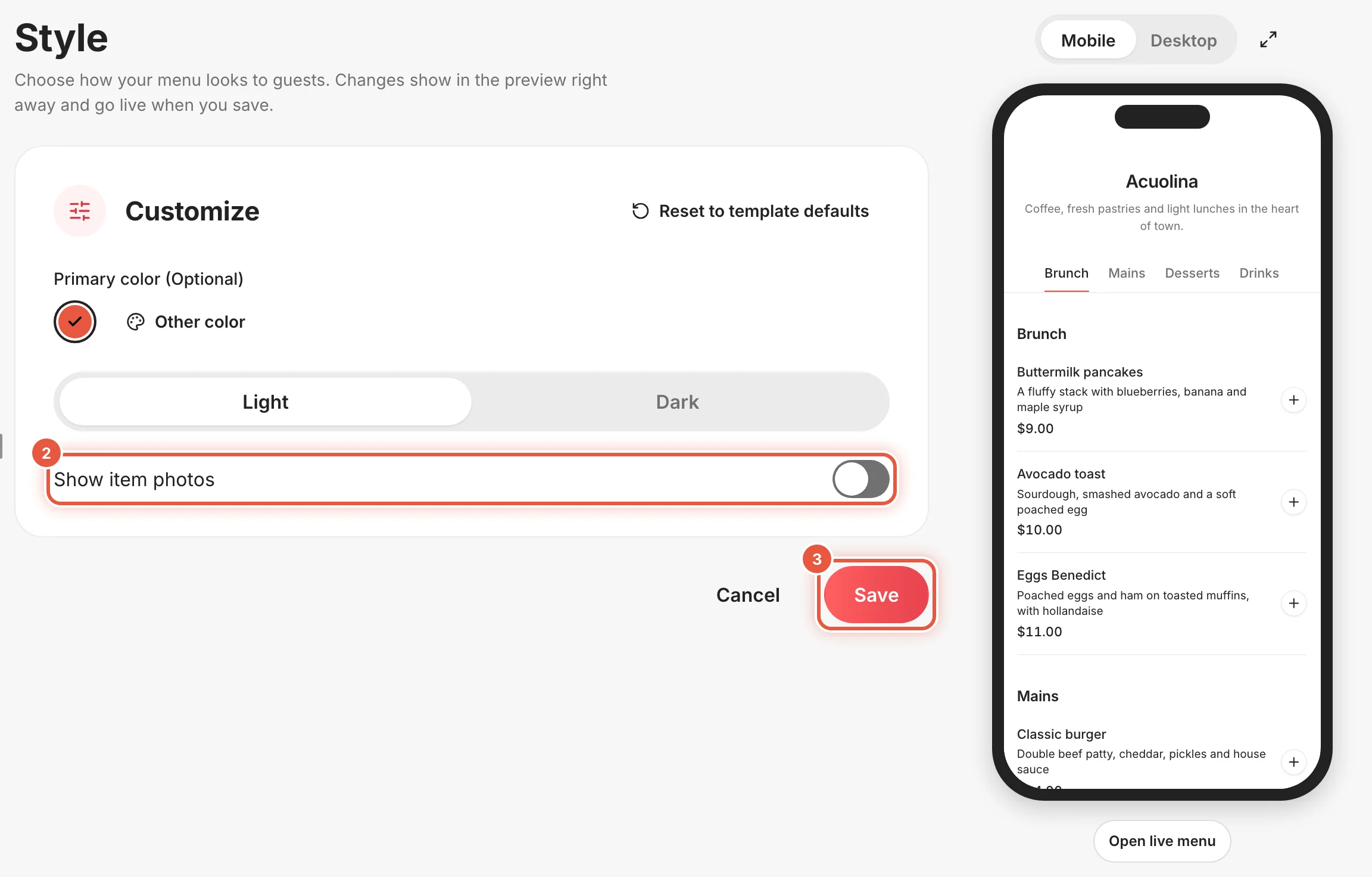
- In the sidebar, select Style.
- Under Customize, turn Show item photos on or off. The preview on the right shows the menu with or without them.
- Select Save. Your QR code menu changes at once.
Until you change it, the switch follows the template's own choice. Reset to template defaults goes back to it.
A menu without photos, or a photo layout
- Off gives a menu without photos: a clean list of names, descriptions and prices. Your photos stay on your items, ready for later.
- On shows each item's photo. With Photo or Asian as your template, the menu becomes a photo grid when at least half of your items have one, and a list otherwise.
To add or change an item's photo, see How to add and edit items.