
Hide an item when it's not available today. It leaves your menu but stays in the dashboard with everything you set, ready to show again.
Hide an item from the menu editor
In Menus, select Edit on the menu.
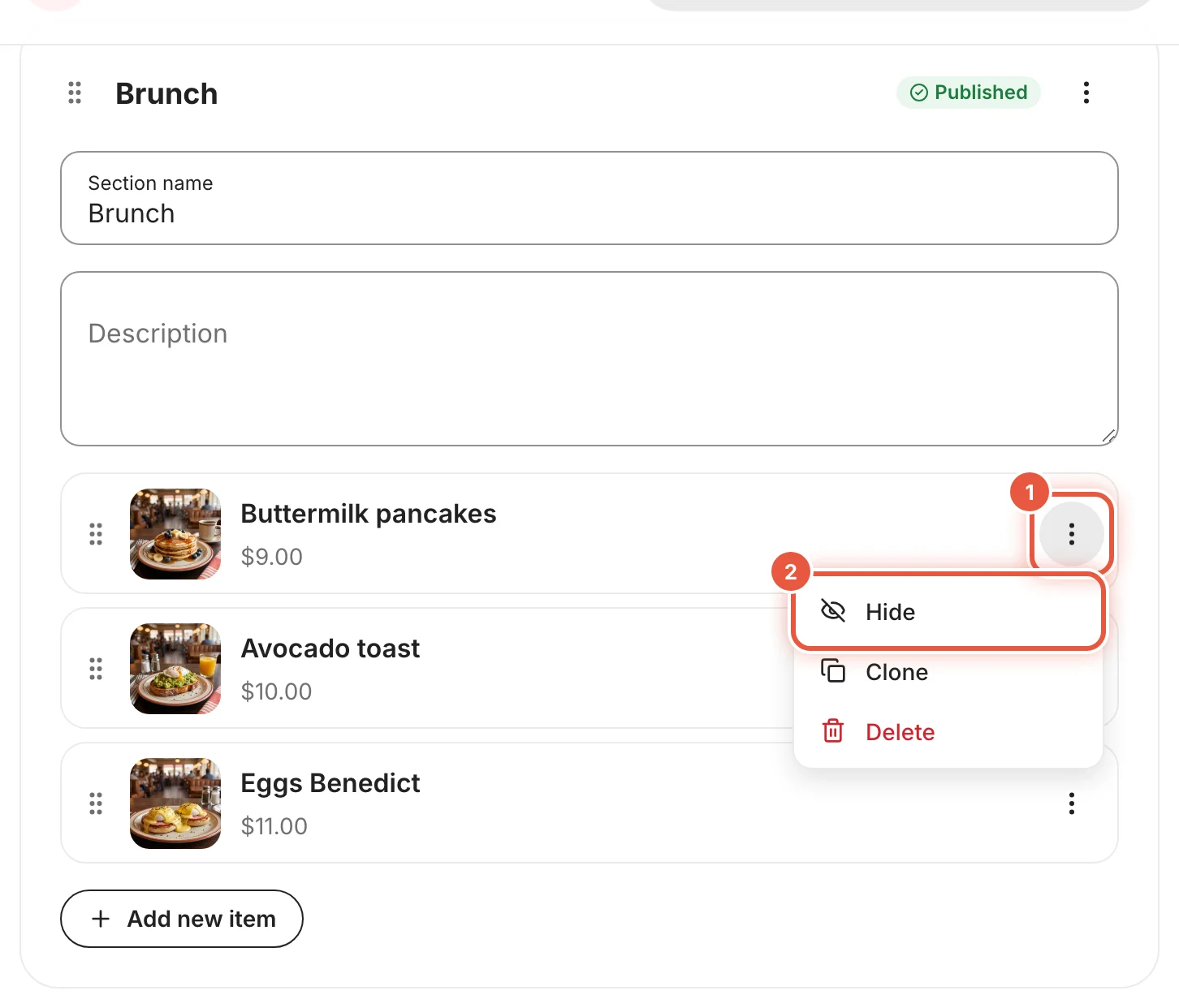
- Open the item's ⋮ options.
- Select Hide. It saves right away, and the item gets a Hidden badge.
Or from the item itself
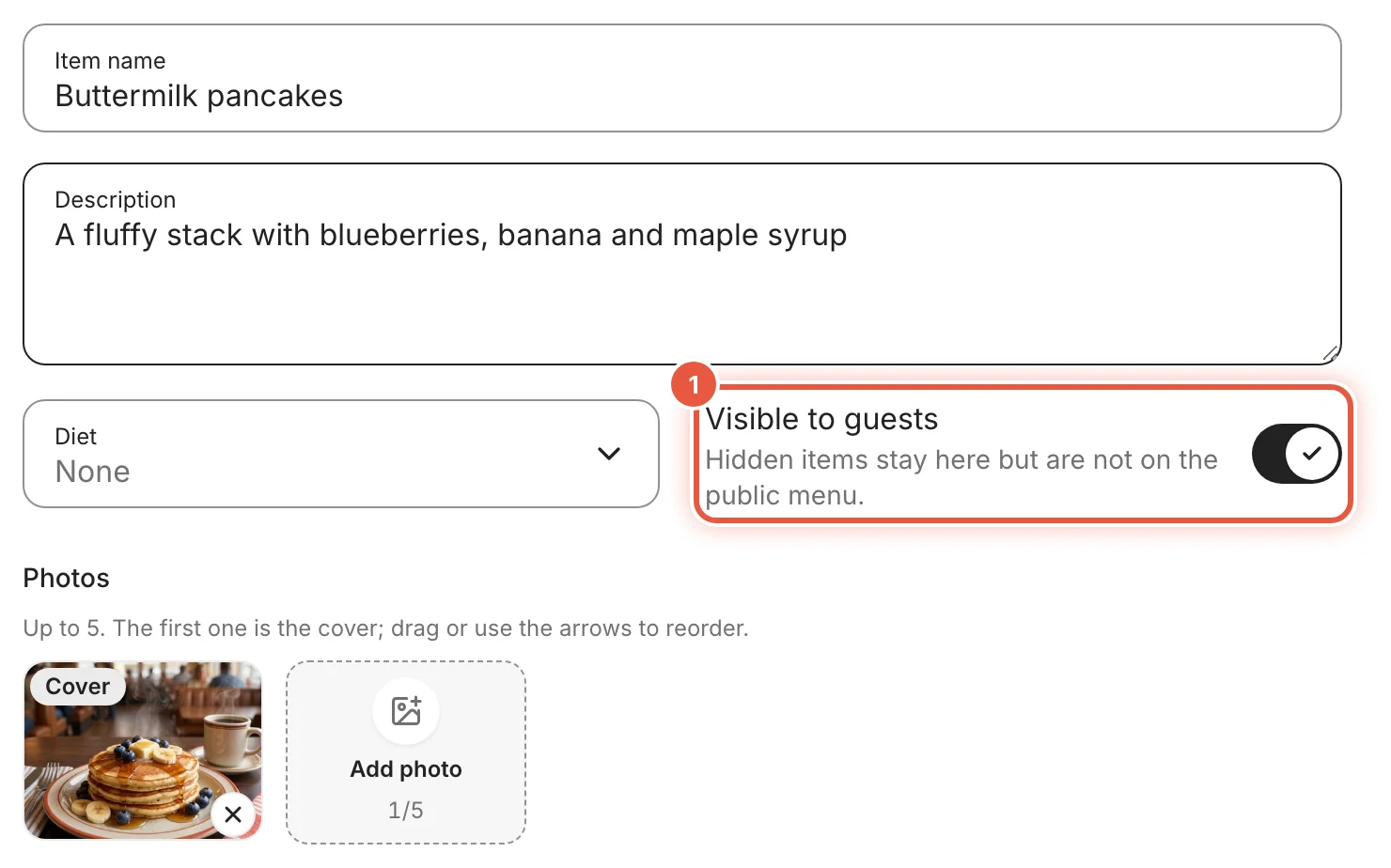
- Turn off Visible to guests.
- Select Save.
Show an item again
Open its ⋮ options and select Show, or turn Visible to guests back on and save. Guests see it on your QR code menu again.
To take a whole menu offline, unpublish it. A section's ⋮ options in the menu editor have Hide too.