
Copy a menu to start a new one from it, in the same store or in another of your stores. Clone makes a full copy, with every section and item.
Copy a menu
- In Menus, open the menu's ⋮ options.
- Select Clone.
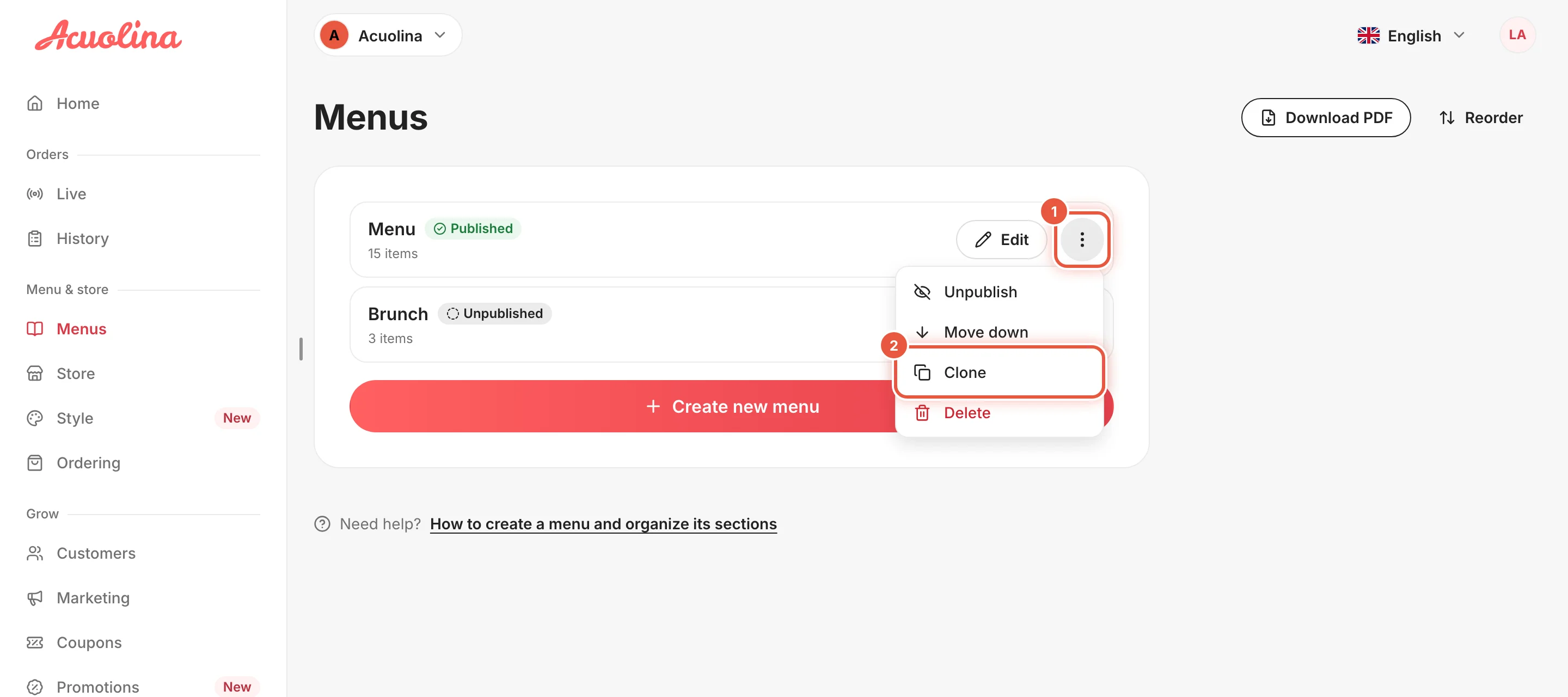
With one store, the copy appears in the list right away.
Copy to another store
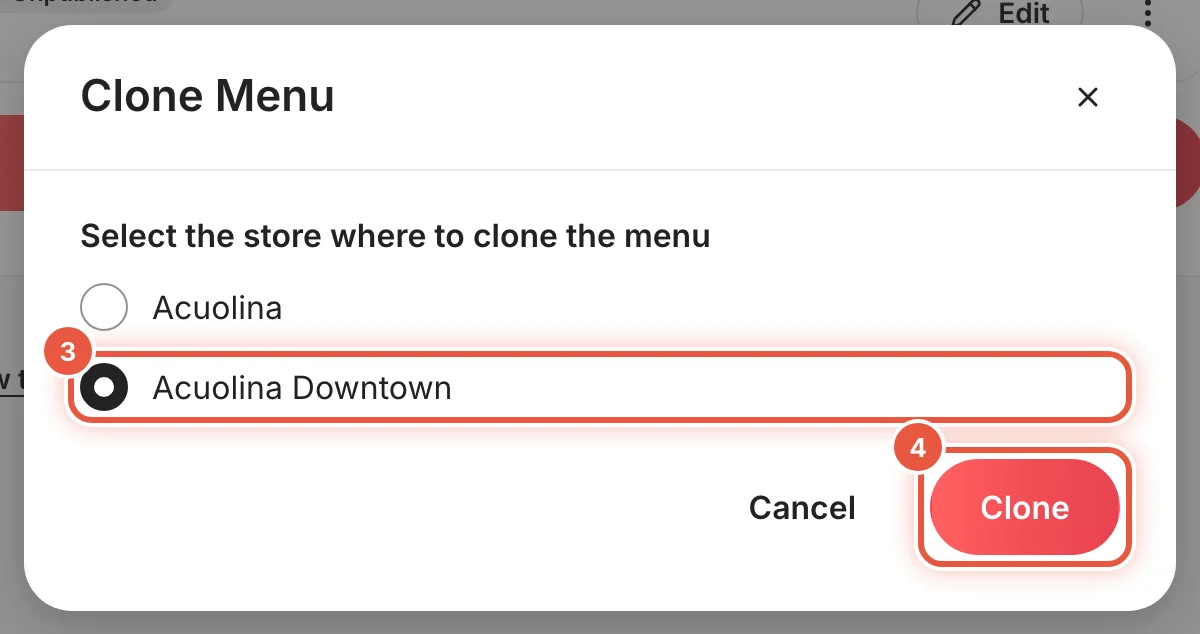
If you have more than one store, Clone asks where the copy goes:
- Pick the store.
- Select Clone.
Edit the copy
The copy keeps the menu's name, sections and items, and starts Unpublished. Its items are separate copies, so changing a price in one menu doesn't change the other. Rename it, edit what you need, then publish it.
Each store has its own QR code menu, so a menu copied to another store shows there once you publish it.