
You can import your menu from a PDF or from photos of the printed one: our AI reads it and turns your paper menu into a digital menu in about a minute.
Import your menu from a PDF or photos
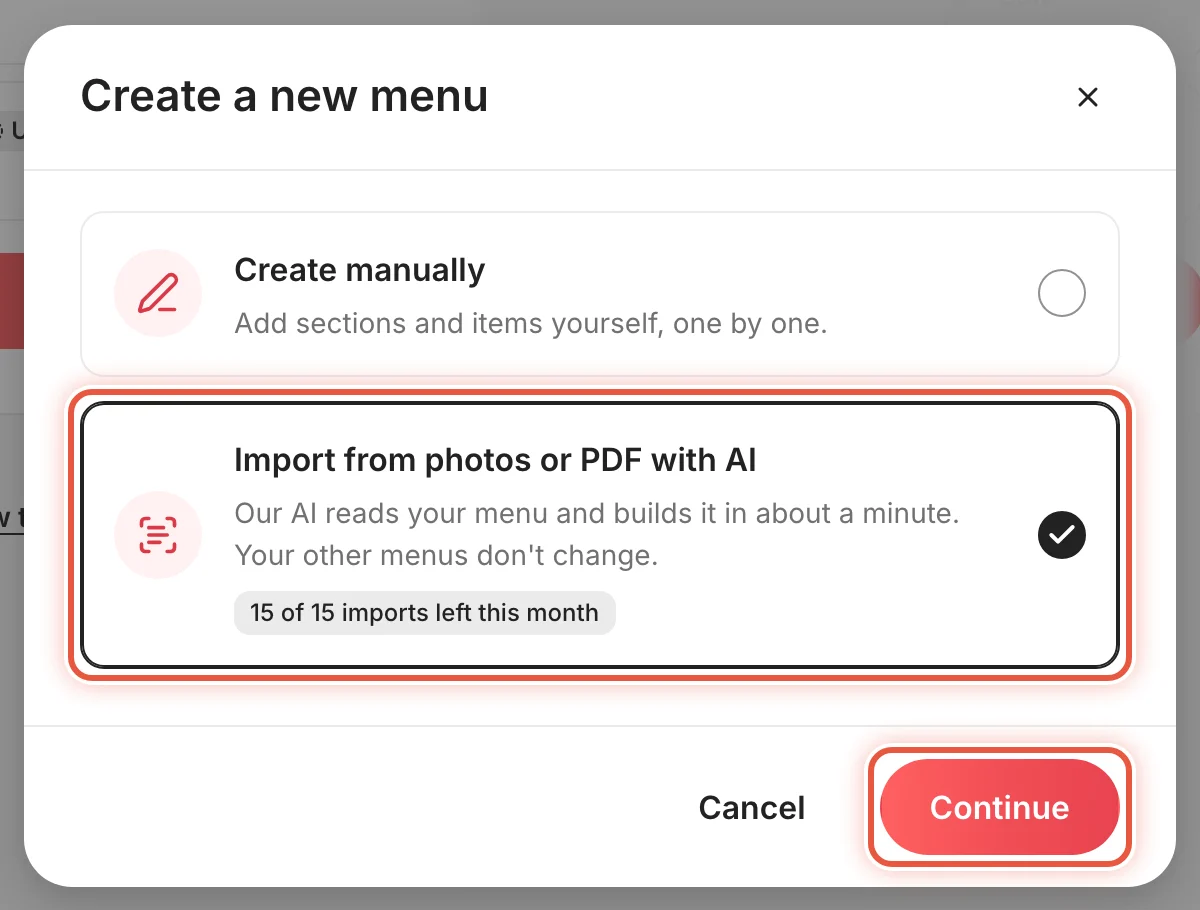
- In Menus, select Create new menu.
- Choose Import from photos or PDF with AI and select Continue.
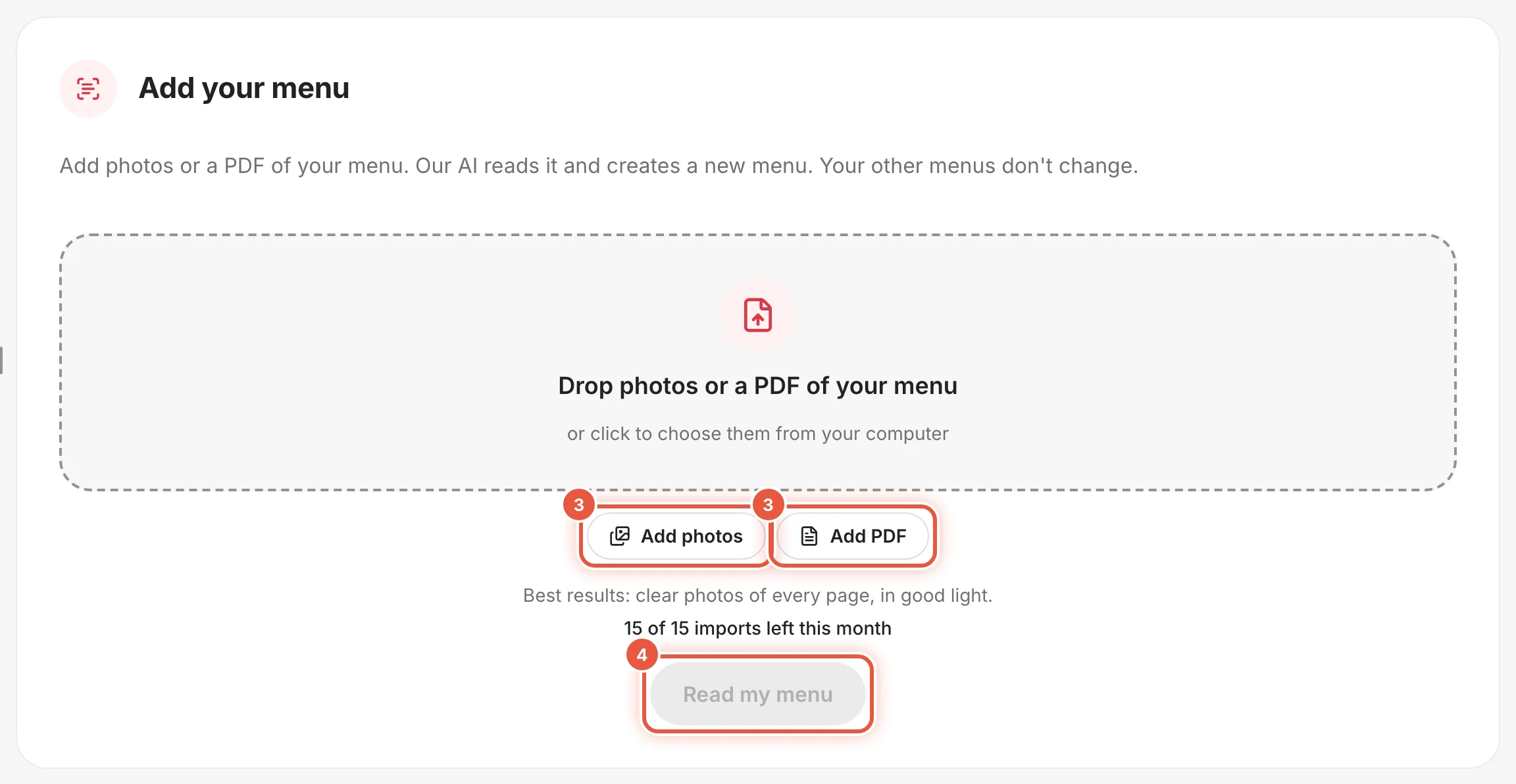
- Select Add photos or Add PDF, or drop the files on the page. Add up to 8 files: a clear photo of every page, or a PDF of up to 20 pages.
- Select Read my menu.
Check the draft and create the menu
When the AI is done, you see the sections and items it found, with their prices.
- Look over the list. If a file was blurry, select Start over and add better photos.
- Select Create menu. It's added as a new menu and published right away; your other menus don't change.
- The menu opens in the editor. Check items and prices there, since the AI can make mistakes: an item it couldn't price is saved at 0. See how to add and edit items.
Guests see the result as your QR code menu.
Start from a sample instead
No menu at hand? While you set up your store, choose Start from a sample in the menu step: a café, a bar or a shop, with photos, in your language. Until you change one of its items, Menus shows This is a sample menu; select Edit items to make it yours.