
You can download your menu as a PDF to print the menu for tables, windows or takeaway bags. The pages are laid out from your published menus, so they always match what guests see online.
Download your menu as a PDF
- In Menus, select Download PDF.
- Tick the menus to print and pick a Template. The preview shows exactly what prints.
- Select Download PDF, then choose Save as PDF in the print window, or print right away.
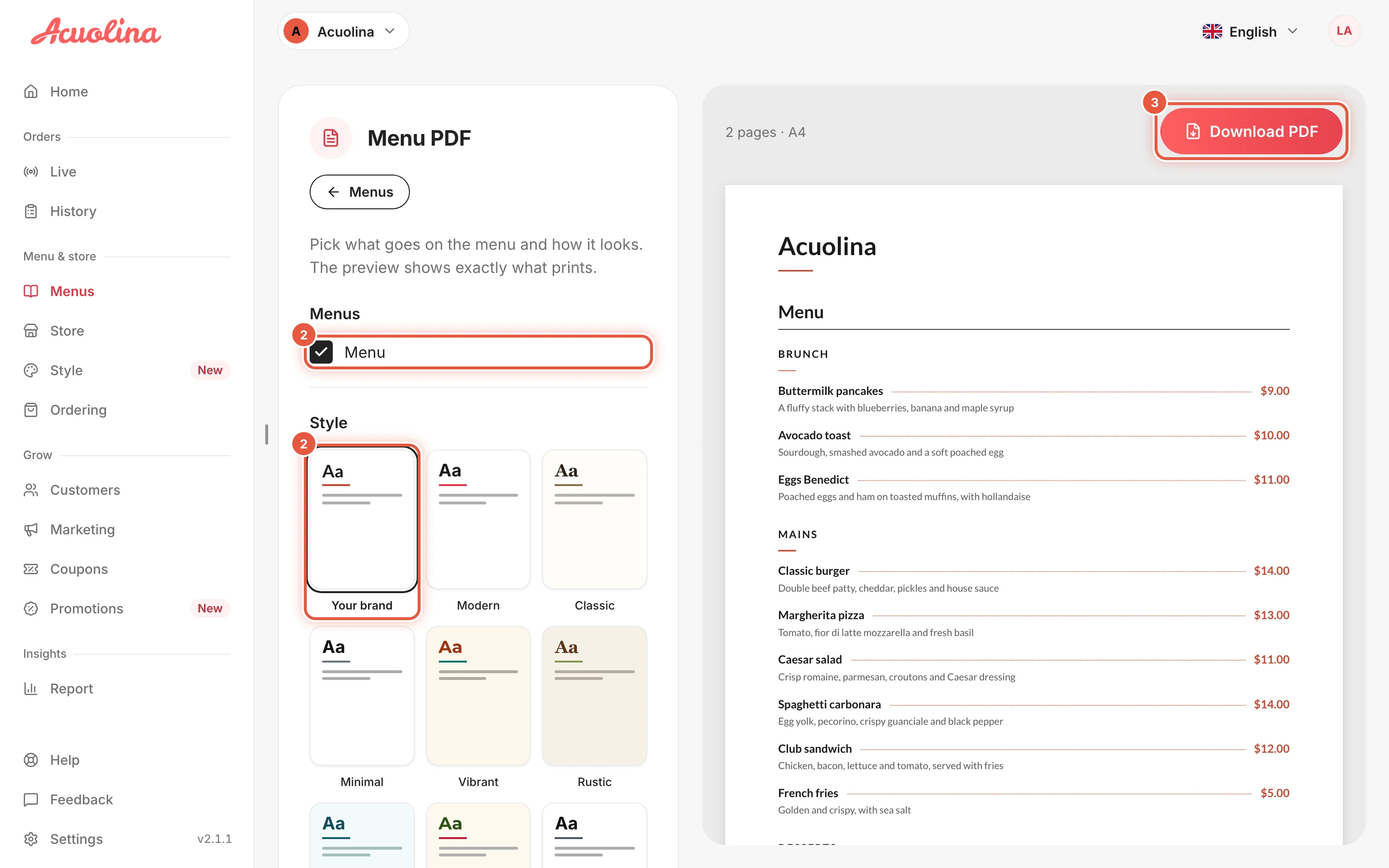
Only published menus are listed. Hidden items stay off the pages.
Choose what's on the page
- Columns and Paper size set the layout.
- Under Content, show or leave out Prices and Descriptions.
- Under Header, add the Store name, the Logo and a QR code that opens your menu online.
- Customize font and colors changes the type and colours of the template.
Need just a QR code for a sign? Make one with the free QR code menu generator.