
Add options, extras and sizes to an item so guests choose them when they order: a size, a cooking point, extra toppings with a price.
Add options, extras and sizes
Open the item: in Menus, select Edit on the menu, then the item's name.
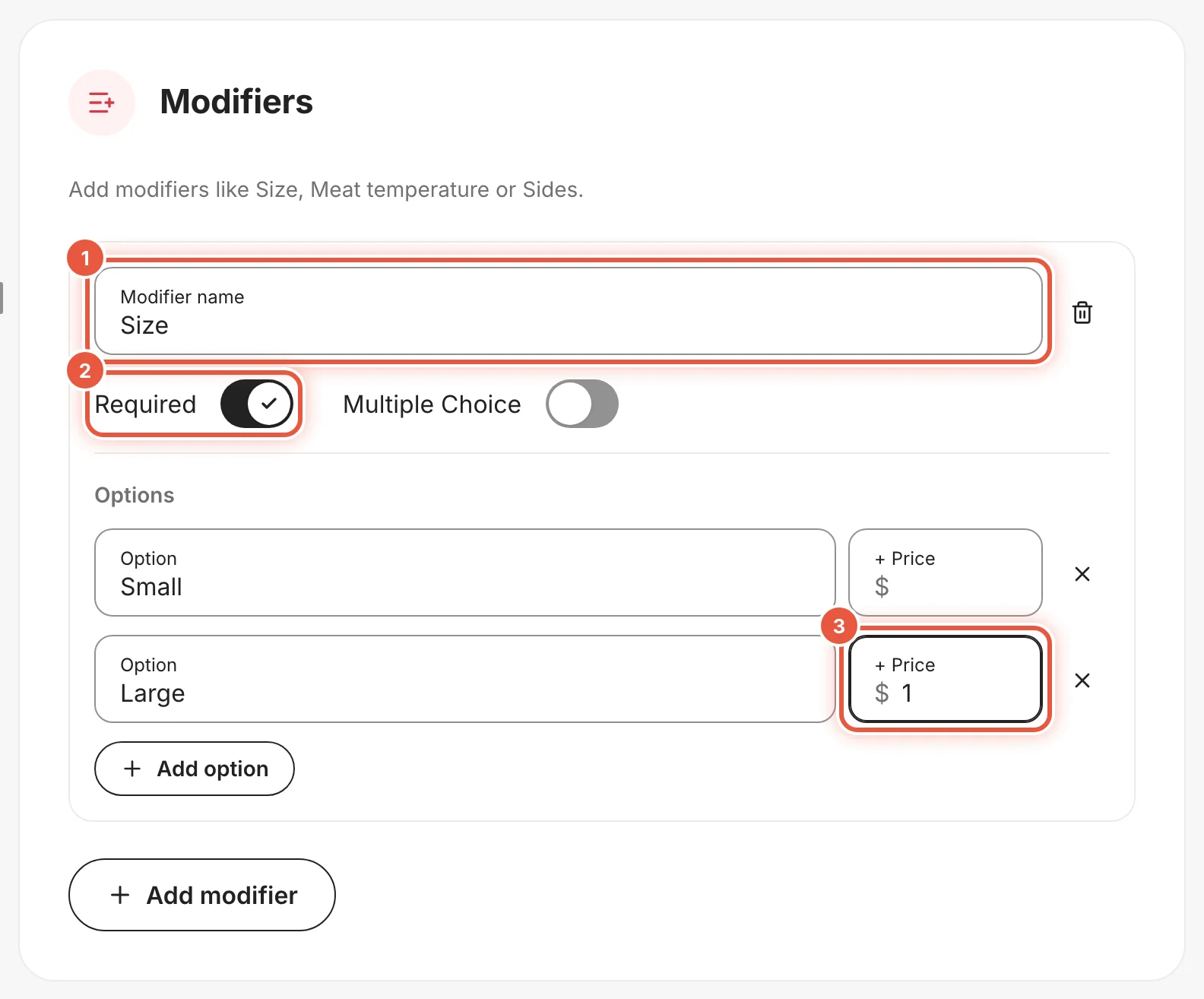
- Under Modifiers, select Add modifier and type its Modifier name, for example "Size".
- Turn on Required if guests must choose, and Multiple Choice if they can pick more than one.
- Type each option and its extra price under + Price. Select Add option for the next one.
- Select Save.
Sizes and extras
- Sizes: give the item the smallest size's price, then add a required "Size" modifier with what each bigger size costs on top, 0 for the smallest.
- Extras: add a modifier that isn't required, turn on Multiple Choice and give each extra its price.
Guests see the modifiers when they open the item, and what they pick adds to the order. That's how online ordering knows exactly what to make.